
Last updated on February 16th, 2026 at 04:30 pm
If your Apple ID is still signed in on a device you no longer use, sold, gave away, or don’t recognize, that’s a serious privacy risk. Your photos, contacts, messages, and even location data could still be accessible from that device.
The good news? Apple allows you to remotely remove your Apple ID or iCloud account from another device using your current iPhone or iPad. You don’t need physical access to the old device, and the process only takes a few minutes.
This complete guide explains how to remove Apple ID from another device, why it’s important, common problems users face, and answers the most searched questions in 2026.
What Does Removing Apple ID from Another Device Mean?
Removing an Apple ID from another device means:
- That device will lose access to your iCloud account
- Your personal data is no longer synced
- The device is removed from your Apple ID device list
- Your account security improves instantly
Once removed, the device will automatically sign out when it connects to the internet.
When Should You Remove Your Apple ID from Another Device?
You should remove your Apple ID immediately if:
- You sold or traded in an iPhone or iPad
- You gave a device to someone else
- You see an unknown device in your Apple ID list
- Your Apple ID was used on a device without permission
- You lost a device and no longer have access
Delaying this can expose sensitive information stored in iCloud.
How to Remove Apple ID from Another Device Using Your iPhone
Quick Answer
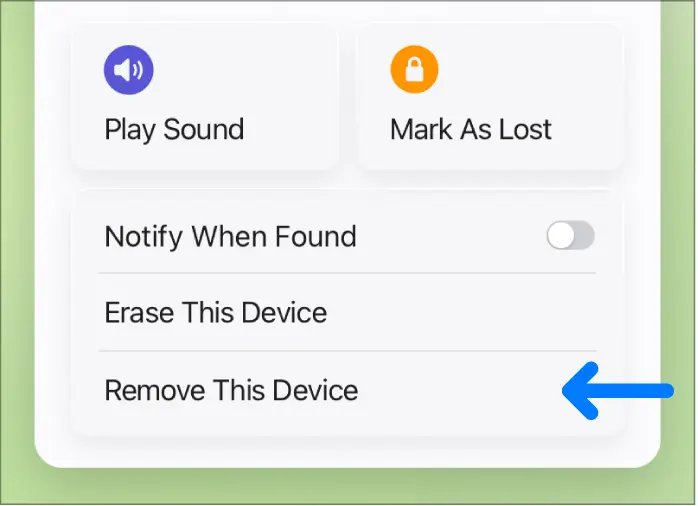
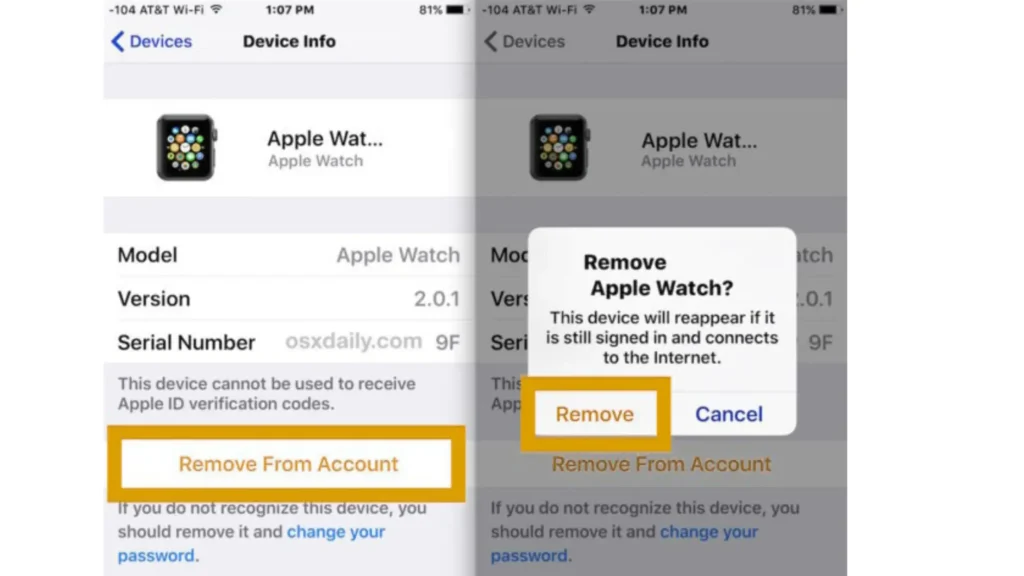
You can remove your Apple ID from another device by opening Settings, tapping your Apple ID name, selecting the device from the list, and choosing Remove from Account. The device will be signed out automatically once it connects to the internet.
Step-by-Step Guide (Easy Method)
Follow these steps carefully:
Step 1: Open Settings on Your iPhone
- Unlock your iPhone
- Go to Settings
Step 2: Tap Your Apple ID
- At the top, tap your name / Apple ID
- This opens your Apple ID dashboard
Step 3: View All Connected Devices
- Scroll down
- You’ll see a list of all devices using your Apple ID
- iPhones
- iPads
- Macs
- Apple Watch
- Other Apple devices
Step 4: Select the Device You Want to Remove
- Tap the device you no longer use
- Review its details (model, name, status)
Step 5: Remove the Device from Your Account
- Tap Remove from Account
- Confirm your choice
That’s it. The device is now removed.
What Happens After Removing a Device?
Once removed:
- The device automatically signs out when it connects to the internet
- Your iCloud data is no longer accessible
- The device disappears from your Apple ID list
- Your Apple ID remains secure
No further action is required.
Does the Device Need Internet Access?
Yes.
The device will be signed out as soon as it connects to the internet.
If it’s offline, the removal stays pending until it goes online.
Can Someone Still Use My Data After Removal?
No.
Once removed:
- iCloud syncing stops
- Your personal data is protected
- Find My, Photos, Notes, and Messages are disconnected
This is why removing unused devices is critical for privacy.
Apple ID Removal vs iCloud Sign Out (Difference Explained)
| Action | What It Does |
|---|---|
| Remove from Account | Completely disconnects the device from your Apple ID |
| Sign out manually | Requires physical access to the device |
| Remove remotely | Best for sold, lost, or unknown devices |
Remote removal is the safest option.
Common Problems and Solutions
Device Not Showing in List
- Make sure you are signed into the correct Apple ID
- Refresh by closing and reopening Settings
Can’t Remove Device
- The device may already be removed
- Try again after a few minutes
Apple ID Still Appears on Device
- Device might be offline
- It will sign out once connected to Wi-Fi or mobile data
Security Tips After Removing a Device
For extra protection:
- Change your Apple ID password
- Enable Two-Factor Authentication
- Review account activity
- Remove any unfamiliar devices immediately
FAQs
Can I remove Apple ID from another device without password?
No. You must be logged into your Apple ID on a trusted device to remove others.
Will removing Apple ID erase the device?
No. It only removes your account, not the device’s local data.
Can I remove Apple ID from iPhone using another iPhone?
Yes. This method works directly from another iPhone or iPad.
Is this method official and safe?
Yes. It’s Apple’s built-in account management feature.
Does this work for lost iPhones?
Yes. As long as the device connects to the internet later.
Final Thoughts
Knowing how to remove Apple ID or iCloud from another device is essential for protecting your privacy in 2026. Whether you sold a phone, lost it, or simply forgot to sign out, Apple makes it easy to fix the issue remotely.
Make it a habit to check your Apple ID device list regularly. It only takes a minute and can save you from serious security problems.
Written by a mobile security and iOS troubleshooting blogger with 7+ years of experience.

Edusolvia Editorial Team creates well-researched, practical, and easy-to-follow educational content. Our articles are written and reviewed by experienced educators and digital specialists to ensure accuracy, clarity, and real-world usefulness. We focus on trustworthy information that helps learners make informed decisions with confidence.