
Scanning a QR code has become very common for opening websites, downloading apps, logging in, or making payments. If you are searching for how to scan a QR code using Google Chrome, this complete step-by-step guide will help you scan QR codes easily on mobile phones and computers.
This method works even if:
- You already have a QR code image saved
- You want to scan a QR code using camera
- You are using Google Chrome on phone or PC
Can You Scan a QR Code with Google Chrome?
Yes ✅
Google Chrome allows you to scan QR codes in multiple ways:
- Using online QR scanner websites
- Using camera or image files
- On Android, iPhone, Windows, and Mac
No extra software is required.
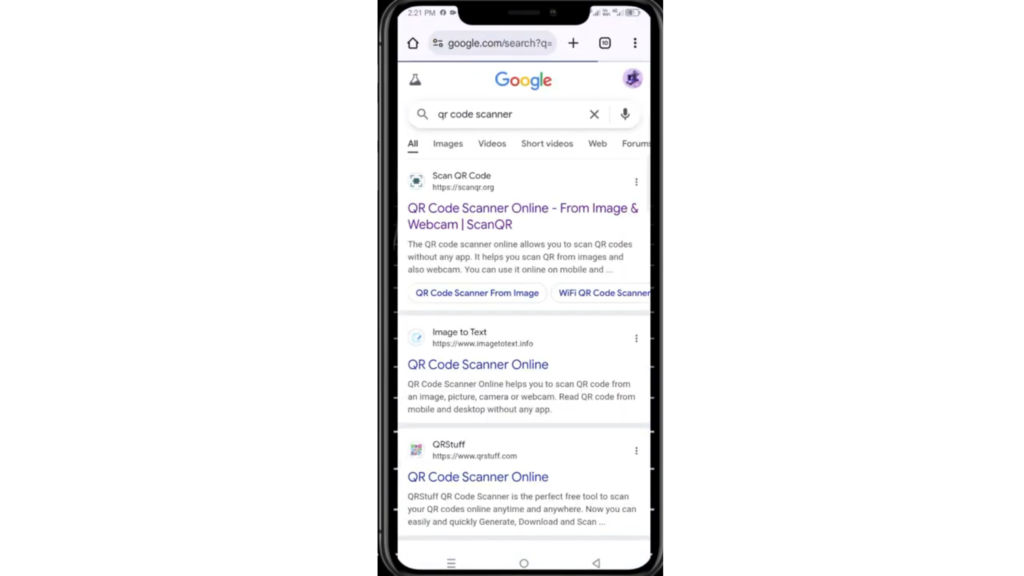
Method: Scan QR Code Using Google Chrome (Online – Free)
This is the easiest and fastest method and works on both phone and computer.
Step-by-Step: Scan QR Code with Chrome
- Open Google Chrome
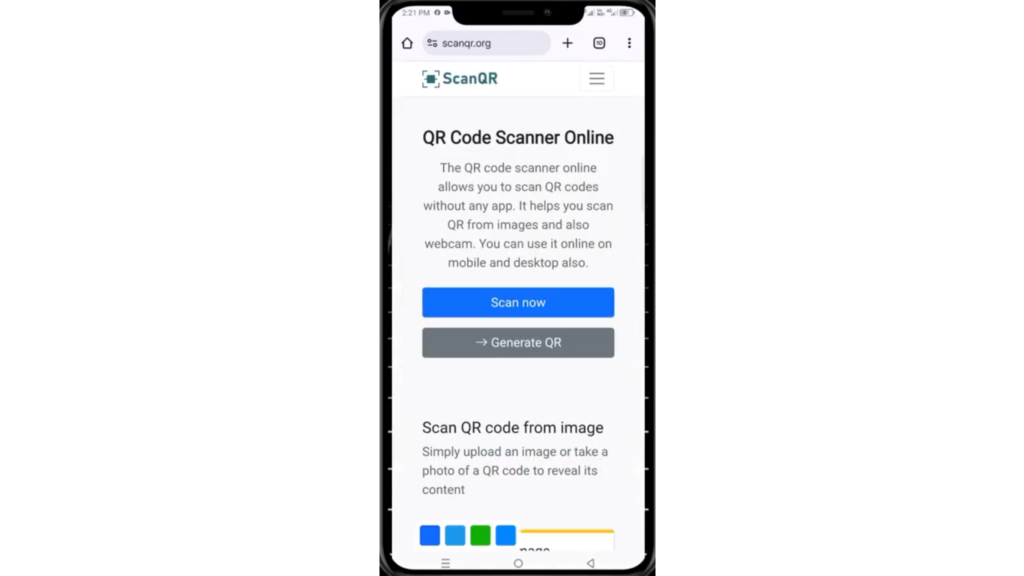
- Go to the website: scanqr.org
- Make sure the URL is correct at the top
- Click on the Scan Now button
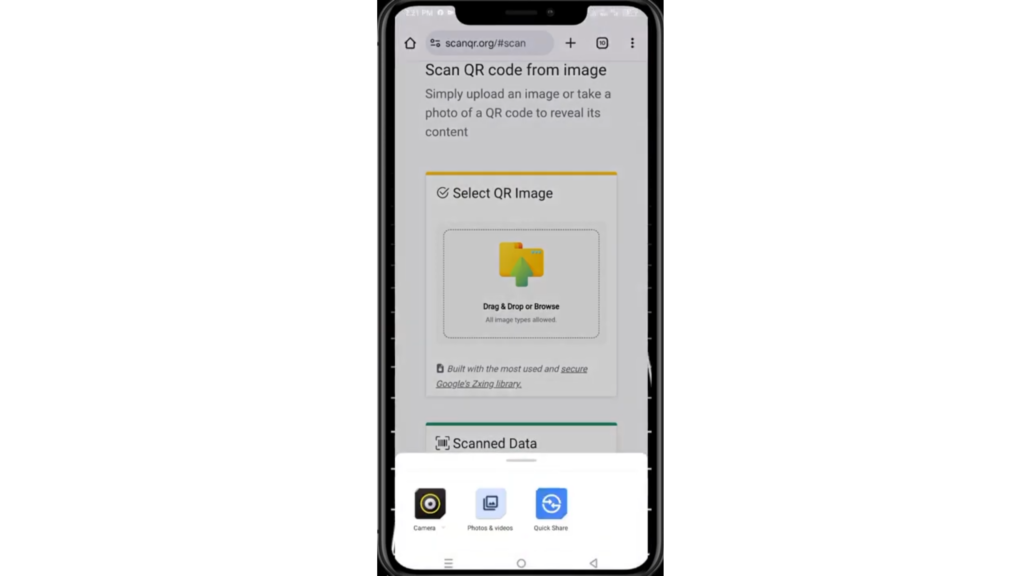
- You will see a folder icon
- Choose one option:
- 📷 Use your camera to scan QR code
- 🖼️ Upload a QR code image from your device
- Select your QR code image (or camera)
- The website will process the QR code
- The result will appear instantly
✔️ If the QR code contains a link, you can highlight and open it directly in Chrome.
Scan QR Code from Image in Google Chrome
If you already have a QR code saved on your phone or PC, this method is perfect.
Steps:
- Open Chrome and visit scanqr.org
- Click Scan Now
- Select Upload from Device
- Choose the QR code image
- Wait a few seconds
- Chrome will display the scanned result
This is useful for:
- Screenshot QR codes
- Downloaded QR images
- Shared QR codes on WhatsApp or Email
Scan QR Code Using Camera in Chrome
You can also scan a QR code directly using your camera.
Steps:
- Open Google Chrome
- Go to scanqr.org
- Tap Scan Now
- Choose Use Camera
- Allow camera permission
- Point camera at the QR code
- Result will appear instantly
Works on Phone and Computer
This method works perfectly on:
- Android phones
- iPhones
- Windows PC
- Mac / MacBook
- Laptop & Desktop
All you need is Google Chrome and internet.
Ads Warning (Important)
You may see some ads or pop-ups on the site.
👉 Just close them — they do not affect scanning.
Common Uses of QR Code Scanning
- Open website links
- Login authentication
- App downloads
- Payment links
- Wi-Fi sharing
- Event check-ins
Final Words
Now you know how to scan a QR code using Google Chrome without installing any app. This method is free, fast, and works on all devices.
If you found this guide helpful, share it with others.
Happy scanning

Edusolvia Editorial Team creates well-researched, practical, and easy-to-follow educational content. Our articles are written and reviewed by experienced educators and digital specialists to ensure accuracy, clarity, and real-world usefulness. We focus on trustworthy information that helps learners make informed decisions with confidence.