

If your keyboard not typing problem appeared suddenly, you’re not alone. Whether keys stopped working, letters type incorrectly, or nothing happens at all, this guide explains how to fix keyboard not typing issues in a clear, beginner-friendly way. We’ll cover software glitches, settings mistakes, power issues, and real hardware failures—so you can get back to typing fast.
If your keyboard won’t type, restart your computer and reconnect the keyboard. Try a different USB port, re-pair Bluetooth, or replace batteries. Turn off Filter Keys and Sticky Keys, confirm the correct keyboard language, then reinstall the keyboard driver. If another keyboard works, the original one may be faulty.
Understanding Keyboard Not Typing Problems
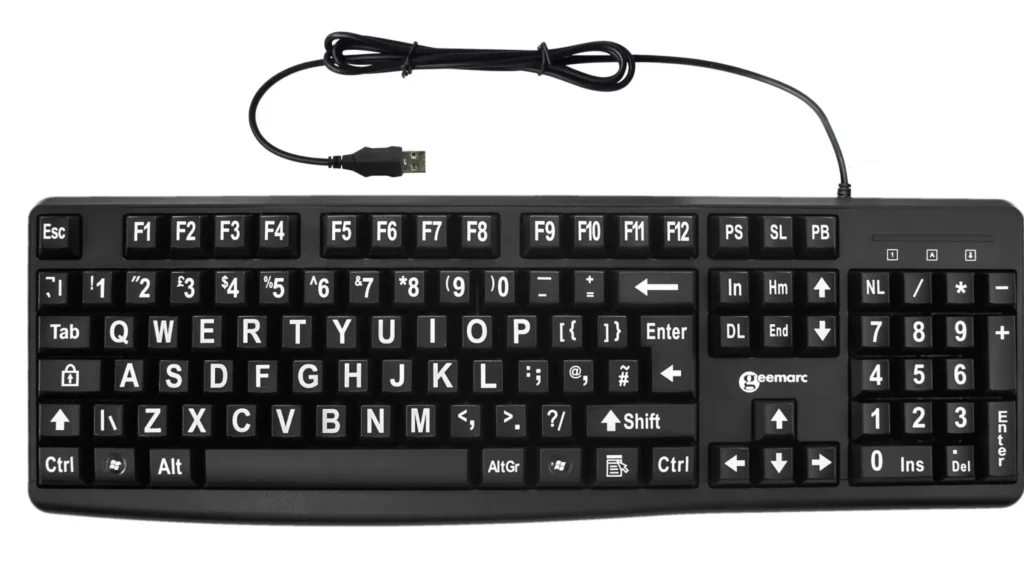
A keyboard that won’t type can fail due to software conflicts, wrong settings, power issues, or physical damage. Common symptoms include:
- Keyboard not responding at all
- Some keys working, others dead
- Wrong characters appearing
- Cursor moving or apps opening while typing
- Keyboard stopped working after sleep mode
The good news? Most cases are fixable without replacing hardware.
Quick Checks Before Troubleshooting
Restart Your Computer
A restart clears temporary glitches and background processes that can block keystrokes.
Try Another App
Open Notepad or a browser search bar. If typing works there, the issue is app-specific—not the keyboard.
Check Physical Keyboard Connections

USB & Wired Keyboard Fixes
- Unplug the keyboard and reconnect it
- Try a different USB port
- Avoid USB hubs—plug directly into the computer
- Test the keyboard on another computer
Wireless & Bluetooth Keyboard Fixes
- Replace or recharge batteries
- Turn the keyboard off and on
- Re-pair the device via Bluetooth settings
- Move closer to the computer to avoid interference
Clean the Keyboard Safely
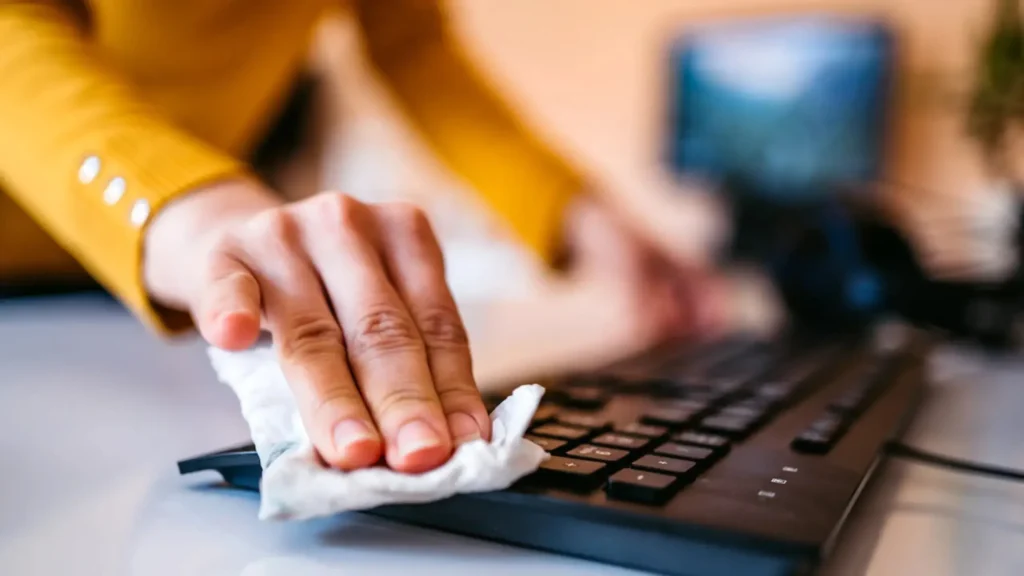
Dust, crumbs, or liquid residue can cause unresponsive or ghost keys.
Safe cleaning steps:
- Turn off the computer
- Flip the keyboard upside down and gently tap
- Use compressed air between keys
- Wipe with a microfiber cloth (light alcohol only if needed)
Use the On-Screen Keyboard (Temporary Fix)
If your keyboard won’t type at login or anywhere else, enable the On-Screen Keyboard from accessibility settings. This confirms whether the issue is hardware or software.
Disable Accessibility Features
Accessibility tools are helpful—but often enabled by accident.
Filter Keys
This ignores quick or repeated keystrokes.
- Turn it off in keyboard accessibility settings
Sticky Keys & Toggle Keys
These can cause shortcuts or sounds while typing. Disable them to restore normal typing.
Check Keyboard Language & Layout
If your keyboard outputs the wrong characters:
- Verify the keyboard layout and language
- Remove extra layouts you don’t use
- Ensure the correct region is selected
Update or Reinstall Keyboard Drivers
Corrupted or outdated drivers are a top cause of keyboard failure.
Steps:
- Open Device Manager
- Expand Keyboards
- Uninstall the keyboard device
- Restart—Windows will reinstall it automatically
For wireless models, update Bluetooth drivers too.
Fix Keyboard Issues After Sleep Mode
If the keyboard stops working after waking from sleep:
- Disable USB power-saving options
- Turn off Fast Startup
- Fully shut down, wait 30 seconds, then restart
Function Keys, Number Lock & Special Keys
- Ensure Number Lock is ON for numeric keypads
- Toggle Fn Lock if function keys don’t work
- Check for Gaming Mode, which disables keys like Windows or Alt
Touchpad Interference While Typing
On laptops, the touchpad may cause:
- Cursor jumps
- Opening apps while typing
Reduce sensitivity or enable palm rejection in touchpad settings.
Test for Hardware Failure
Try an external keyboard:
- If it works → laptop keyboard is faulty
- If it doesn’t → software or motherboard issue
Liquid spills, worn keys, or internal damage often require replacement.
Advanced Fixes (Use Carefully)
- Boot into Safe Mode to rule out software conflicts
- Run built-in hardware diagnostics
- Use System Restore to roll back recent changes
- Update BIOS only if recommended by the manufacturer
When to Replace the Keyboard
You likely need a new keyboard if:
- Keys don’t work even in BIOS
- External keyboard works but laptop keyboard doesn’t
- There’s visible liquid damage or broken keys
Keyboards are relatively affordable—and often cheaper than repairs.
FAQs – How to Fix Keyboard Not Typing
Why is my keyboard not typing but the mouse works?
Usually a driver issue, accessibility feature, or power-saving setting.
How do I fix keyboard not typing on Windows 11?
Disable Filter Keys, reinstall drivers, and check keyboard layout settings.
Why are only some keys not working?
Dust, worn switches, or partial hardware failure are common causes.
Can a low battery cause keyboard failure?
Yes—wireless keyboards may stop typing when batteries are weak.
Why does my keyboard type wrong characters?
Incorrect language or layout settings are usually responsible.
Is keyboard not typing a virus issue?
Rarely. It’s almost always a settings, driver, or hardware problem.
Conclusion
Learning how to fix keyboard not typing issues doesn’t require technical expertise. In most cases, the problem comes down to settings, power, or drivers—all easy to fix at home. Start with simple checks, move through software solutions, and only consider replacement if hardware failure is confirmed.

Edusolvia Editorial Team creates well-researched, practical, and easy-to-follow educational content. Our articles are written and reviewed by experienced educators and digital specialists to ensure accuracy, clarity, and real-world usefulness. We focus on trustworthy information that helps learners make informed decisions with confidence.