
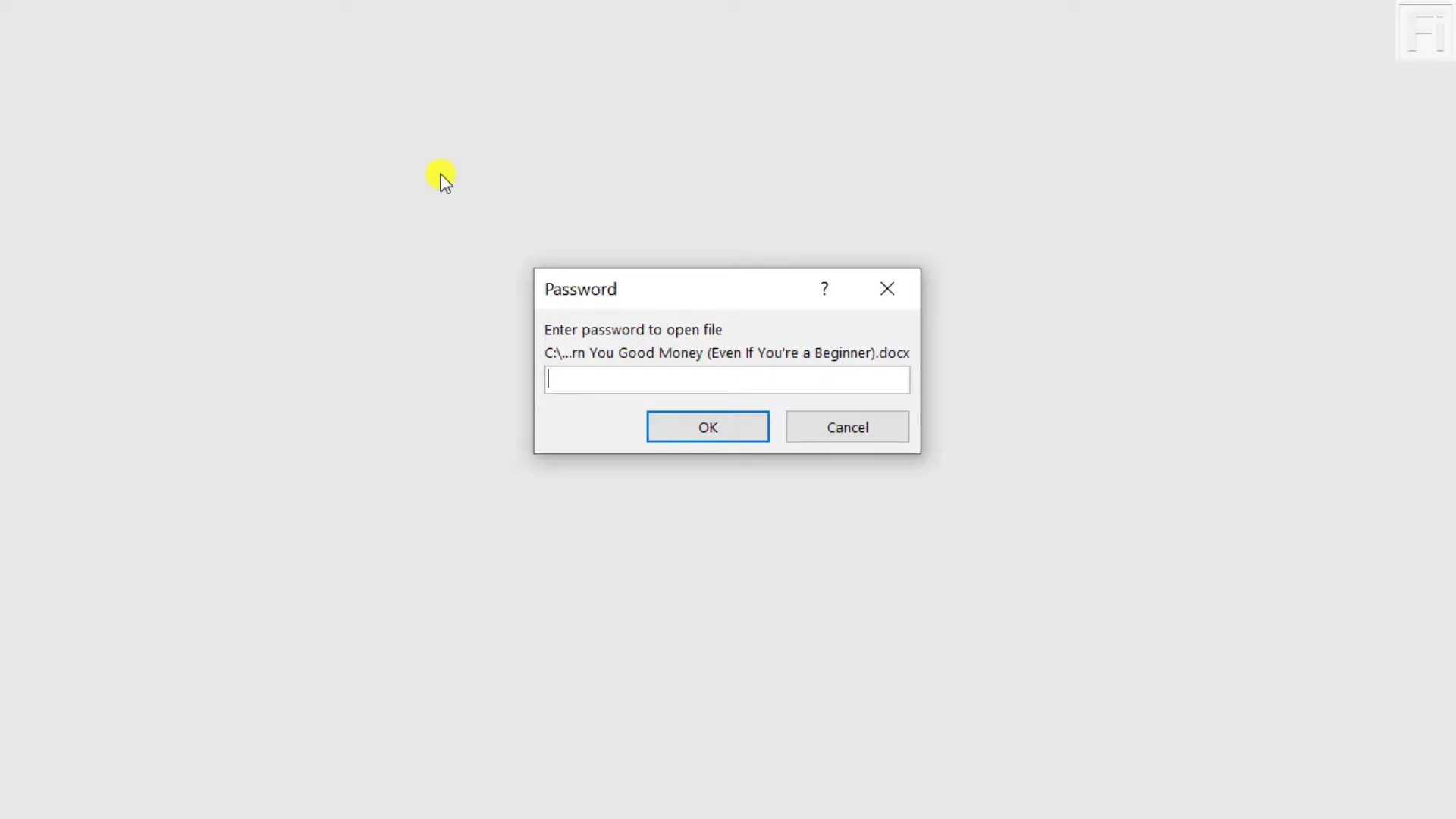
Removing a password from a Word document should be easy—but many people get stuck because they’re trying the right steps on the wrong type of protection. In Microsoft Word, “password protection” isn’t one single feature. It can refer to file encryption (a password required to open the document), editing restrictions (the file opens but won’t allow changes), or simple access states like read-only and Protected View that look like a password problem but usually aren’t.
To remove a password from a Word document, first identify the protection type. If the file requires a password to open, open it with the password, then go to File > Info > Protect Document > Encrypt with Password, delete the password field so it’s blank, click OK, and Save. If the document opens but won’t let you edit, go to Review > Restrict Editing > Stop Protection, enter the password, and save. If it’s only read-only or Protected View, click Enable Editing or turn off Always Open Read-Only under File > Info > Protect Document.
Understand What “Password” Means in Word
People often say “password” when they mean different things in Microsoft Word. That’s why one method works for one file—but not for another. Before you try to remove a password, it helps to identify which kind of protection you’re dealing with. This saves time and prevents you from accidentally breaking formatting or permissions.
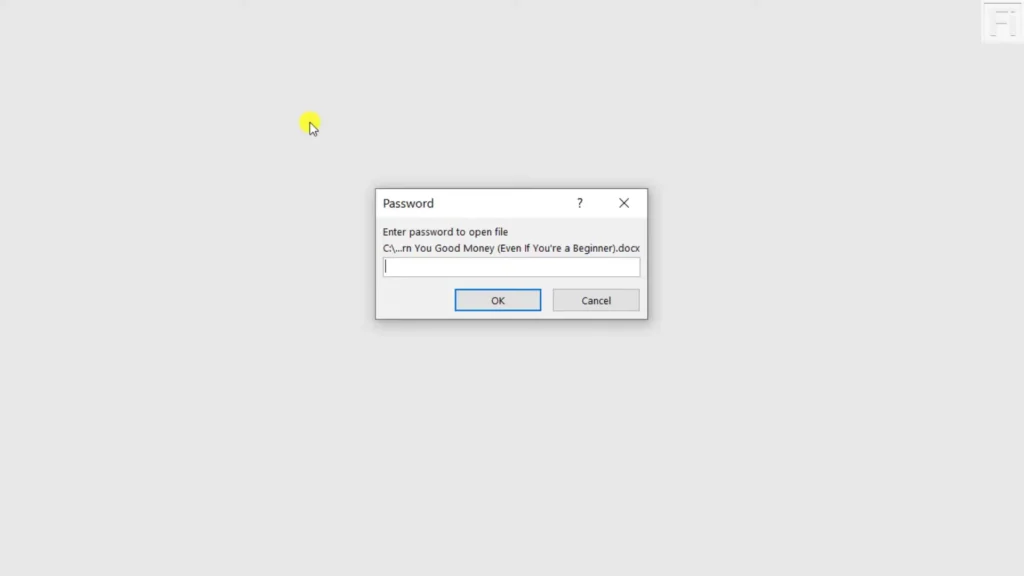
Password to Open (Encryption)
This is the strongest type. If your document won’t open at all until you enter a password, it’s encrypted. In this case, Word requires the correct current password to remove it. Microsoft’s own guidance is straightforward: open the file using the password, then clear the encryption password from the “Encrypt with Password” box.
Restrict Editing / Form Protection
This is different: the file opens normally, but you can’t edit text, or only certain sections can be edited. You’ll often see messages like:
- “This document is protected.”
- “Editing is restricted.”
- Buttons are greyed out.
In that case, you need to stop protection from the Restrict Editing panel (and you may need the password if one was set).
Mark as Final / Read-only
These are “soft locks.” They can make a file look password-protected, but they usually don’t encrypt the file. You can often turn them off without a password (unless other protections exist).
✅ Bottom line: once you know which type you have, removing protection becomes much easier—and safer.
Before You Start: Quick Safety Checklist
- Save a copy first: Duplicate the file so you can revert if needed (File → Save As → new name).
- Make sure you’re allowed to remove protection: Especially for work/school documents.
- Confirm which protection exists:
- Can’t open file without password → Encryption
- Can open file but can’t edit → Restrict Editing
- Opens as read-only/final → Mark as Final / Read-only
Remove “Password to Open” on Windows (Microsoft 365 / Word 2016–2024)
This is the official built-in method.
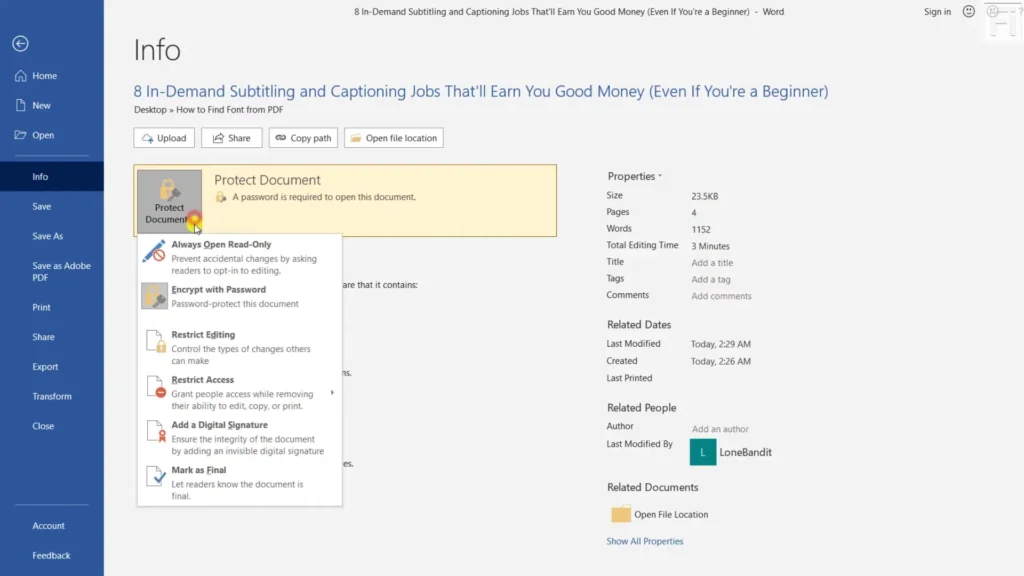
- Open the Word document and enter the current password.
- Go to File → Info.
- Click Protect Document.
- Select Encrypt with Password.
- In the password box, delete the password (make it blank).
- Click OK.
- Save the document (Ctrl + S).
That’s it—after saving, the file should open without a password next time.
If “Encrypt with Password” is greyed out
Try these quick checks:
- Make sure you opened the document in desktop Word, not a limited viewer.
- If the file is coming from email/Downloads, right-click it → Properties → Unblock (if you see it), then reopen.
- If you’re in a managed work environment, your organization may apply policies that restrict changes.
Remove “Password to Open” on Mac (Word for macOS)
On Mac, the menus look different, but the idea is the same: open the file using the password, then clear it.
- Open the document and enter the password.
- Go to the Review tab (or Tools, depending on version).
- Choose Protect or Protect Document.
- In the password area (often “Security” / “Set a password to open this document”), delete the password so it’s empty.
- Click OK.
- Save the document.
Mac protection steps vary by version, but this is the standard path for Word on macOS.
Remove “Restrict Editing” (Editing Password / Form Protection)
If the file opens but you can’t type or edit freely, you’re likely dealing with Restrict Editing protection.
Windows
- Open the document.
- Go to Review tab.
- Click Restrict Editing.
- In the pane that opens, click Stop Protection.
- Enter the password (if prompted) → OK.
Once stopped, you can edit normally.
Mac
- Open the document.
- Go to Review.
- Look for Protect / Restrict Editing.
- Choose Stop Protection (enter password if asked).
Remove “Read-only” or “Mark as Final”
Sometimes the file isn’t truly password-protected—it’s just discouraging edits.
Turn off “Mark as Final”
- On Word, go to File → Info → Protect Document
- If Mark as Final is enabled, turn it off.
- Save the file.
Read-only recommended
If you see “Read-only recommended,” you can usually click No when opening, then Save.
If You Forgot the Password
If it’s a password to open (encryption) and you forgot it, Word typically cannot recover it. Microsoft notes that if you lose/forget the password, Word won’t retrieve it for you (with rare enterprise-only exceptions if special recovery tools were set up ahead of time).
What you can do safely
- Ask the person who protected it for the password.
- Check whether you have an earlier unprotected copy (email attachments, backups, OneDrive/SharePoint version history).
- If it’s a work device, ask IT whether enterprise recovery was configured (not always available).
What I won’t help with
I can’t guide you through breaking or bypassing a password you don’t know (for example, cracking tools or exploit steps). If you do know the password and just want to remove it, the steps above are the correct way.
FAQs
1) Can I remove a Word password without knowing it?
If it’s an open password (encryption), generally no—you need the correct password to remove it.
2) Why does my document open but I can’t edit anything?
That’s usually Restrict Editing or form protection, not encryption. Use Review → Restrict Editing → Stop Protection.
3) Will removing the password delete my content?
No, removing protection (correctly) shouldn’t delete content. Still, save a backup first.
4) I removed the password but it still asks again—why?
You may have removed editing restriction but not encryption, or vice versa. Re-check which protection type is enabled under File → Info → Protect Document (Windows).
5) Can I remove a password in Word Online?
Word Online has limitations. If the file is encrypted, you typically need the desktop app to manage encryption settings reliably. (A common fix is opening it in the desktop app from OneDrive/SharePoint.)
6) Is “Mark as Final” the same as a password?
No—Mark as Final is not the same as encryption. It’s more like a “please don’t edit” status, and it can often be toggled off.
Conclusion
If you’re searching for how to remove password from word document, the key is identifying the type of protection:
- Password to open (encryption): Open it with the password → File → Info → Encrypt with Password → clear it → Save.
- Restrict editing: Review → Restrict Editing → Stop Protection.
- Read-only/Final: Turn off “Mark as Final,” or save a new editable copy.
If you tell me what you see (e.g., “it won’t open” vs “it opens but won’t edit,” plus Windows or Mac), I’ll point you to the exact quickest path.

Edusolvia Editorial Team creates well-researched, practical, and easy-to-follow educational content. Our articles are written and reviewed by experienced educators and digital specialists to ensure accuracy, clarity, and real-world usefulness. We focus on trustworthy information that helps learners make informed decisions with confidence.