
BeeTV is generally described online as a third-party video-on-demand (VOD) streaming app that aggregates links for movies, series, films, and episodes into a single browsing experience. Many guides highlight these common “app attributes”:
- Lightweight app (often under ~20MB depending on build)
- No registration / no subscription in the app itself
- Browsing categories like Movies, TV Shows, sometimes Anime, Documentaries, and occasionally an Adult/XXX section (varies by build)
- Subtitles / captions support and a watchlist + watch history concept
- Uses an external video player on some Fire TV setups (more on that below)
Also Read This: How to Fix Microsoft Store Download or Install Errors in 2026
You typically won’t find BeeTV in the Amazon Appstore because it’s distributed as an APK (Android application package / app file) and is usually installed via sideloading (installing from unverified sources). That’s why the core process is: enable Developer Options → allow unknown apps → use Downloader to fetch the BeeTV APK → install.
Safety + Legal Reality Check (Read This Once, Save Yourself Headaches)
On modern Fire TV devices, Amazon can disable apps identified as using or providing access to unlicensed content, and Fire OS may show warning prompts that push you to uninstall. Amazon documents this policy in its own help page.
Independent reporting also notes Amazon has expanded blocking to include sideloaded apps on Fire TV devices, rolling out region-by-region.
If you still proceed, treat this like installing any third-party Android package:
- Prefer well-known installation tools and trusted sources.
- Scan APK files when possible.
- Avoid odd permissions.
- Expect that a “working today” setup might not work later due to policy changes or link availability.
Also Read This: How to Download GTA San Andreas on PC (2026 Guide – All Working Methods)
What You Need Before You Start (Firestick 4K Checklist)
- Amazon Fire TV Stick 4K (Fire TV Stick 4K / 4K Max / Fire TV Cube process is similar)
- Stable internet (buffering is often Wi-Fi, not the app)
- ~300MB free space (room for APK + player)
- Downloader installed from the Amazon Appstore
- Ability to access Developer Options and Install unknown apps (Fire OS 7 wording)
Step-By-Step: Install BeeTV on Fire TV Stick 4K (15 Steps)
These steps focus on the installation (setup/sideload) mechanics. What you stream is your responsibility.
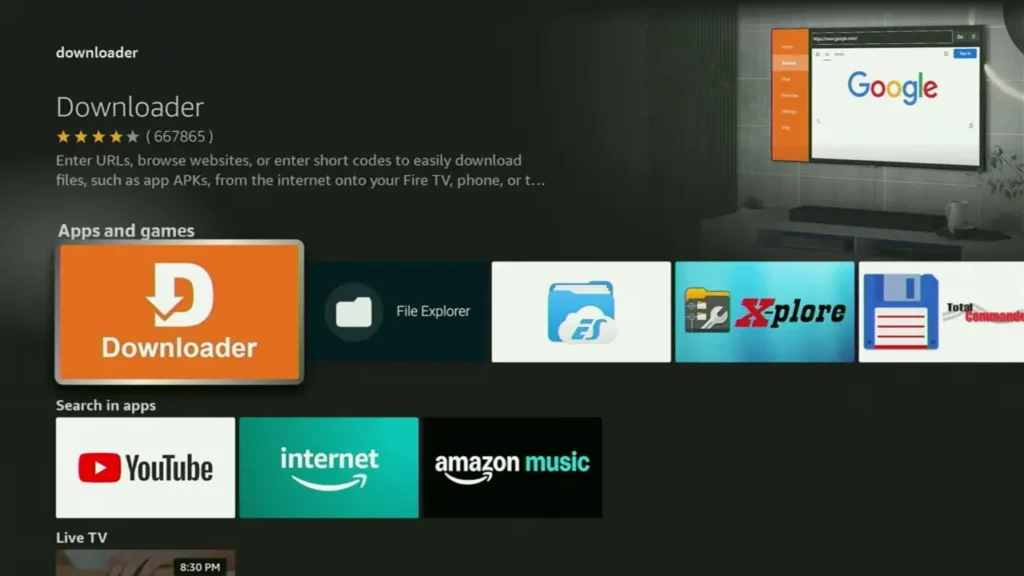
1) Install Downloader
- Fire TV Home → Find / Search
- Type Downloader
- Install Downloader (official Appstore listing)
2) Reveal Developer Options (if missing)
Some Fire OS builds hide it until you unlock it:
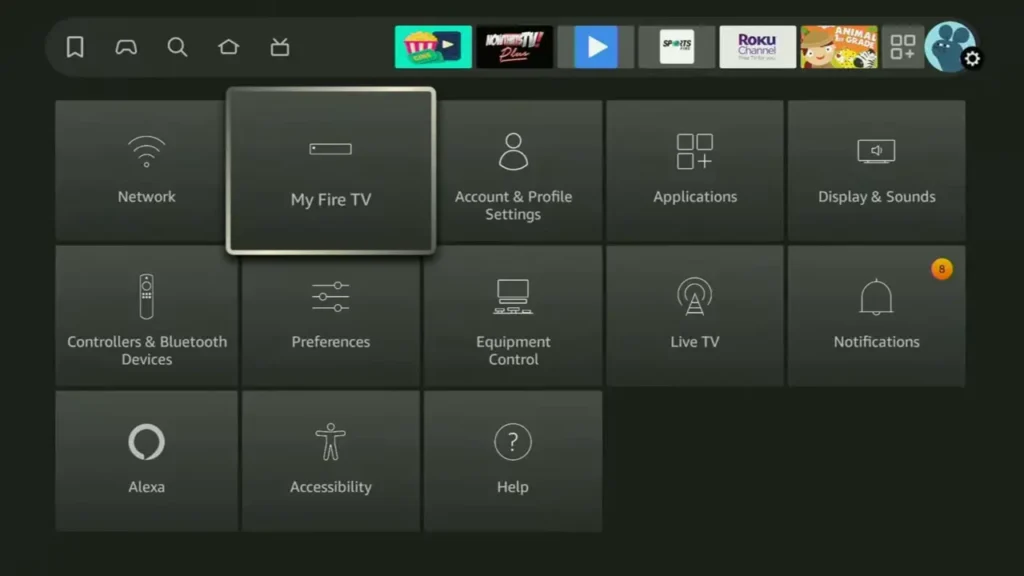
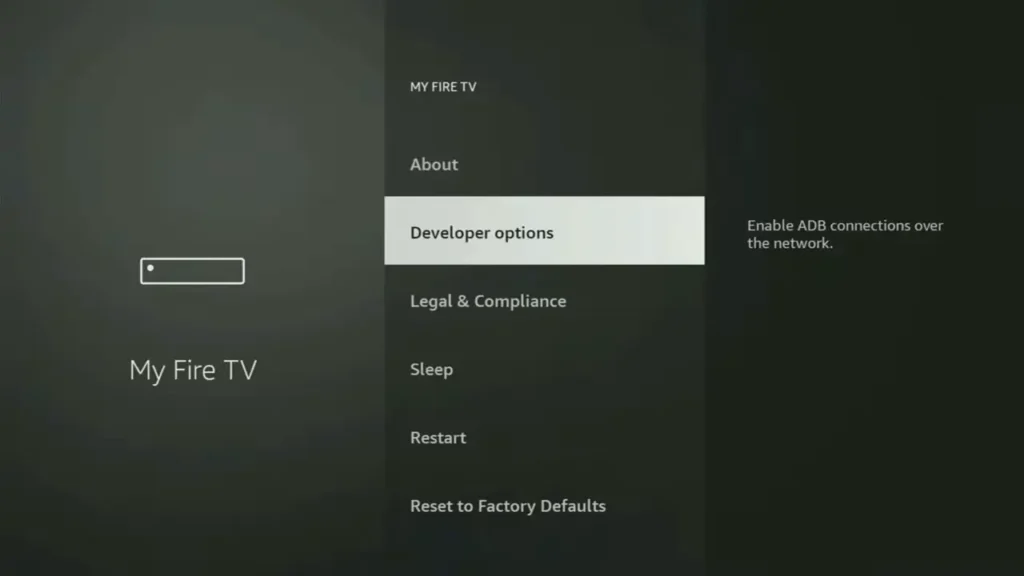
- Settings (gear) → My Fire TV → About
- Highlight the device name
- Press Select 7 times to enable Developer Options
(Amazon also documents a Developer Tools menu method for Fire TV remotes in its developer docs, but the “7-click” method is the common consumer path.)
3) Enable “Install unknown apps” for Downloader
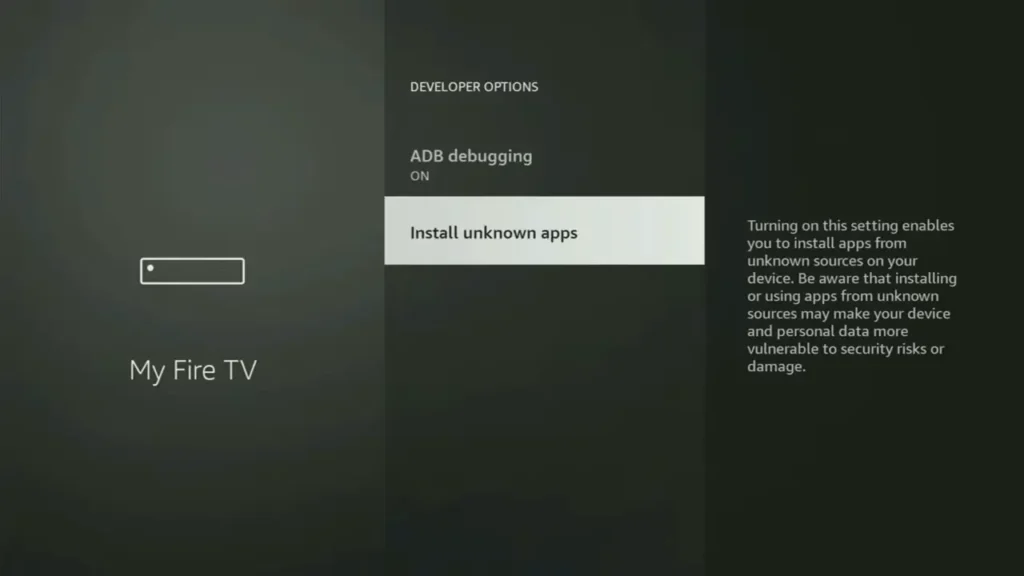
- Settings → My Fire TV → Developer Options
- Install unknown apps
- Turn ON for Downloader
This is the Fire OS 7 replacement for the older “Apps from Unknown Sources” toggle.
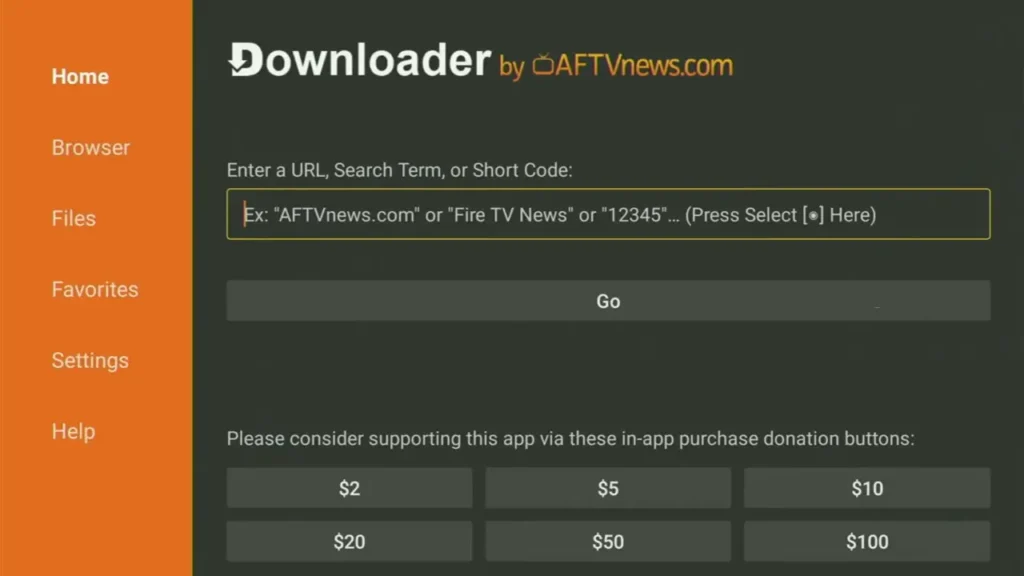
4) Open Downloader and allow its prompts
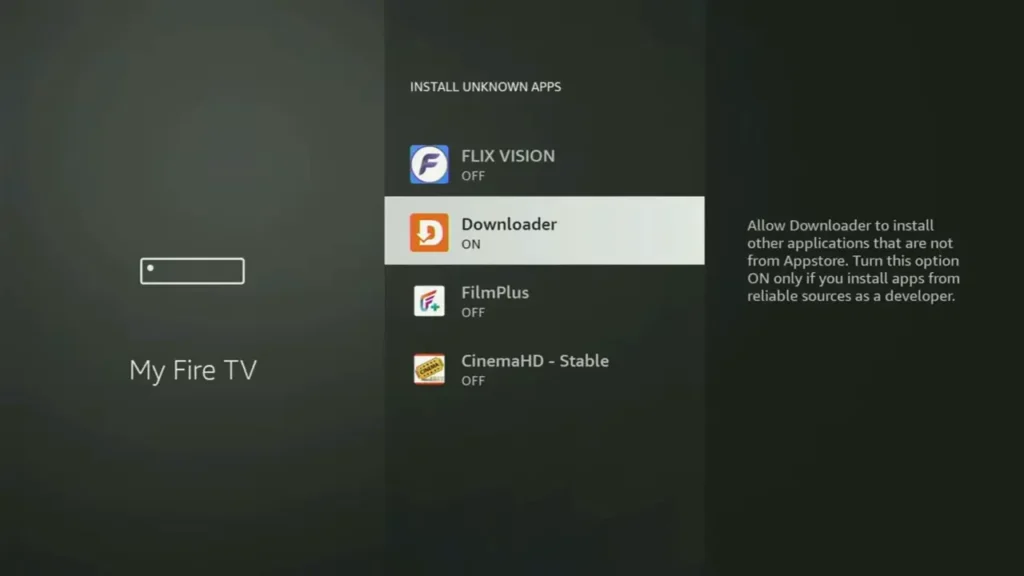
- Launch Downloader → allow prompts it needs for downloading and installing APK files.
5) Decide: URL vs Downloader Code
Downloader supports:
- Full URL entry
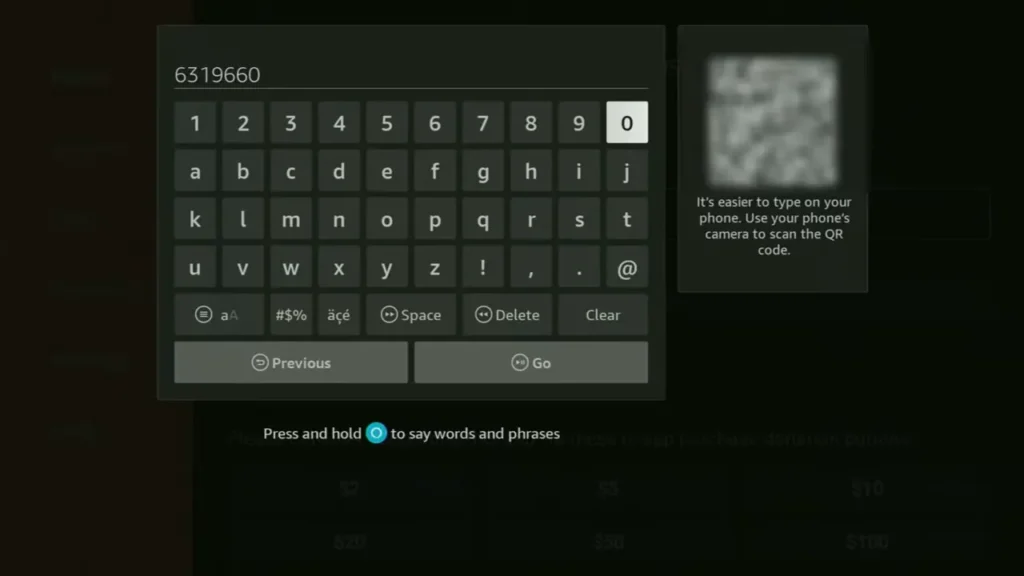
- Short code entry
A widely referenced example is the TROYPOINT Toolbox code 250931, which opens a curated installer hub inside Downloader.
6) Optional: Use a toolbox hub (cleaner than random “mirror” sites)
If you use a toolbox approach:
- In Downloader, enter 250931
- Open the hub page and locate BeeTV (availability changes)
7) Or download BeeTV directly from a source you trust
Some BeeTV-labeled sites claim “latest version” numbers like v4.5.5 (example: listings that show version + size).
Tip: Don’t treat “official” labels on random pages as proof. Instead, verify the file (next step).
8) Download the APK file
- In Downloader, enter the URL/code → tap Go → wait for download.
9) Scan the APK (Best Practice)
Before installing, one practical workflow is:
- Download the APK on a PC/phone first and scan it with VirusTotal, which analyzes files using 70+ scanners and related services.
If you can’t scan, be extra cautious with permissions and source reputation.
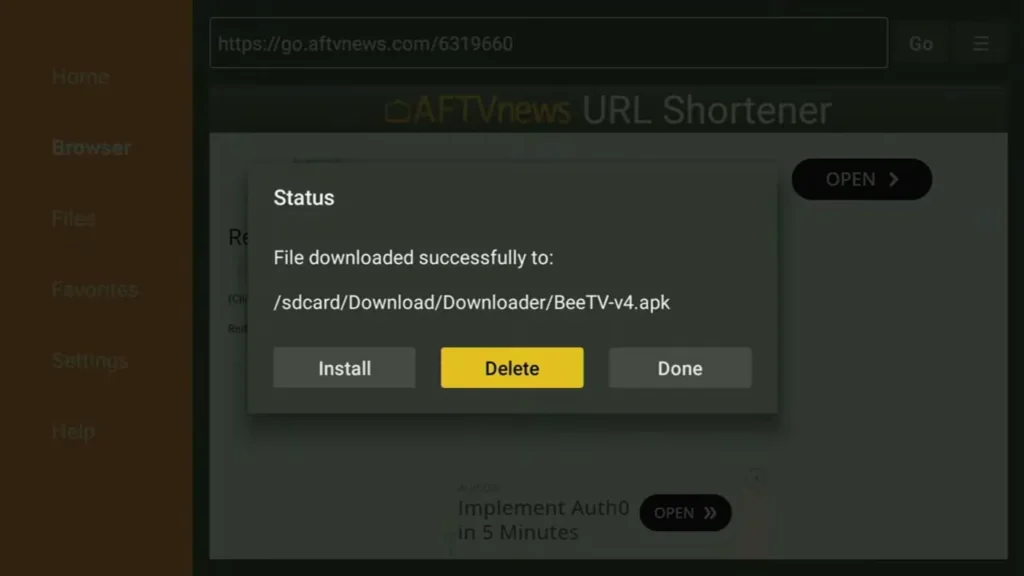
10) Install BeeTV
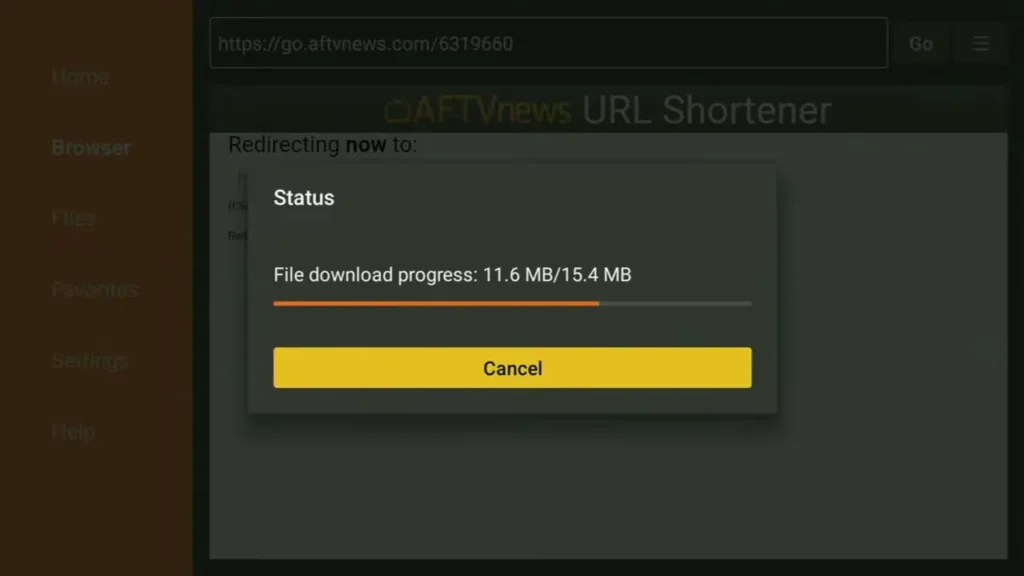
When Downloader finishes downloading:
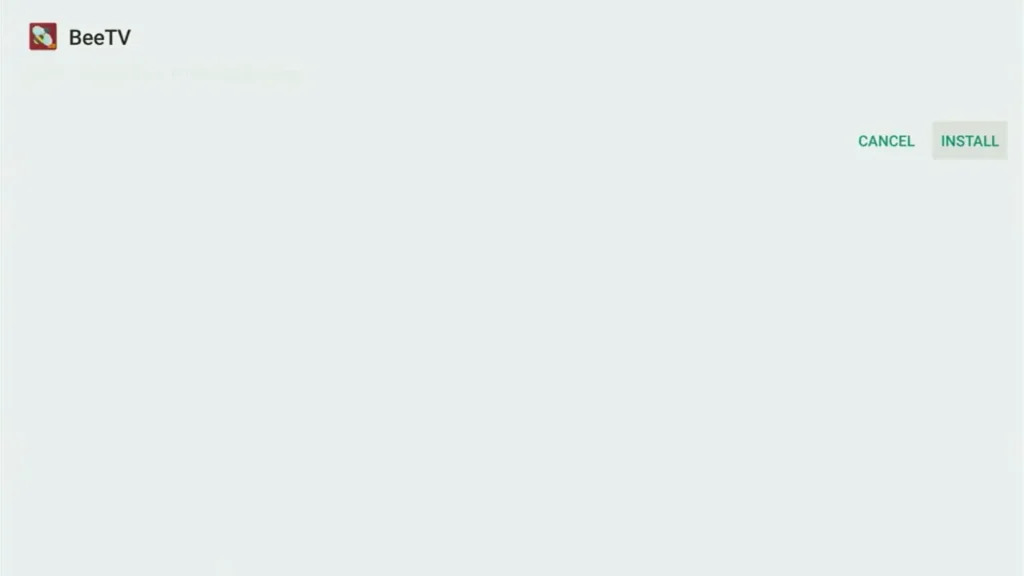
- Choose Install
- After install, choose Done
- Delete the downloaded APK file (optional but helps storage)
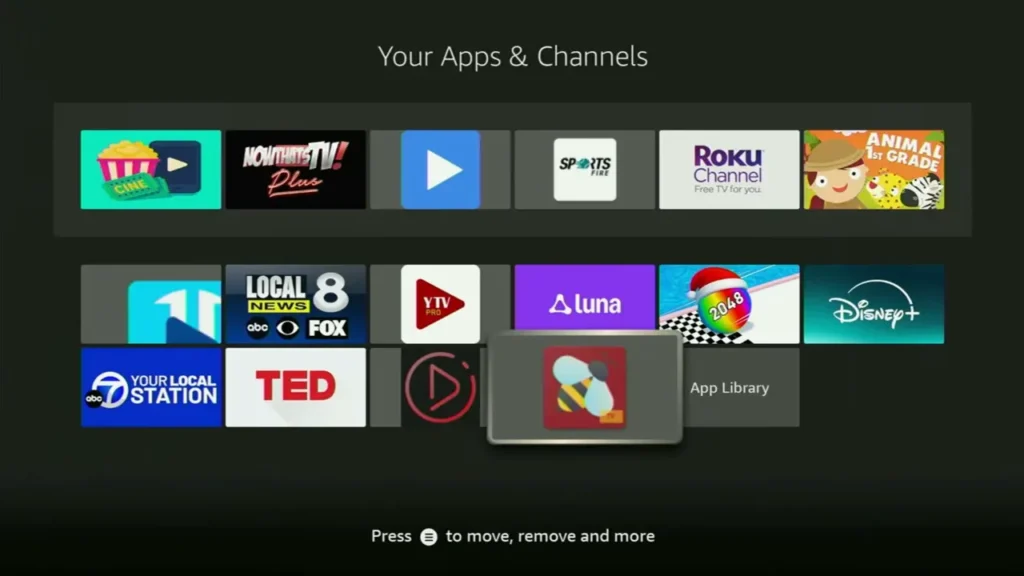
11) Launch BeeTV
- Fire TV Home → Your Apps & Channels → find BeeTV → Open / Launch
12) Install a video player (often required)
Many guides note BeeTV may rely on a third-party player on Fire TV, rather than using only an internal player.
13) Set a default player inside BeeTV
In BeeTV settings (names vary by build):
- Choose External player → pick one
- If you see prompts pushing a specific player, read carefully and avoid suspicious permission requests.
14) Adjust subtitles & playback settings
Typical improvements:
- Enable subtitles/captions and pick language
- Adjust subtitle size (if player supports)
- Toggle hardware acceleration (if available) to reduce lag
15) Reboot once
After first setup:
- Restart the Fire TV Stick 4K to stabilize background services and cached data.
Player Setup: Bear Player vs MX Player vs VLC (Which One Should You Use?)
Some builds push Bear Player, while others work well with alternatives. Users often prefer players with better subtitle and audio controls.
Here’s a practical comparison table:
| Video Player | Strengths | Weak Spots | Best For |
|---|---|---|---|
| Bear Player | Often works “out of the box” with BeeTV-style prompts | Limited subtitle sync controls on some versions; can be buggy | Basic playback when you just want it to run |
| MX Player | Strong format support, good subtitle options | Some features vary by build | Subtitles, smoother playback, fewer crashes |
| VLC media player | Very compatible, stable, good for odd files | Interface can feel technical | Reliability and broad codec support |
If your subtitles are out of sync, a player with subtitle delay controls helps a lot (some users even swap the default player for that reason).
Optional Integrations: Real-Debrid, Premiumize, AllDebrid, Trakt
If BeeTV offers integration menus (varies by build), these options may appear:
- Real-Debrid: can provide more premium links (often higher quality, less buffering) using an API key or login flow.
- Premiumize and AllDebrid: similar “premium link” concept.
- Trakt: syncs watchlist / watch history using an activation code flow.
Common sense setup rules:
- Only sign in on devices you control.
- Avoid reusing important passwords.
- If an integration page looks fake or redirects oddly, back out.
Updating BeeTV in 2026 (Without Breaking Everything)
Sideloaded apps don’t update like Appstore apps. A safer update routine is:
- Check the installed version inside the app (if shown).
- Compare against a trusted guide’s current version notes (example: guides referencing builds like v4.5.x).
- Download the newer APK.
- Install over the old app (usually keeps settings).
- If the app begins crashing after update, uninstall → reinstall, then set your player again.
Troubleshooting Hub (Fix the Problems People Actually Search For)
BeeTV not installing on Firestick / “App not installed”
Likely causes
- Corrupt download (bad APK file)
- Not enough storage
- Wrong Android/Fire OS compatibility
Fixes
- Re-download from a different trusted source
- Clear Downloader cache
- Free space: uninstall unused apps, delete old APK files
Parse error (BeeTV APK won’t install)
Meaning: The file can’t be parsed as a valid Android package on your device.
Try this
- Download again (often fixes it)
- Confirm you’re on Fire TV Stick 4K (not an older incompatible device)
- Use a different build/source
Downloader error: ERR_NAME_NOT_RESOLVED
Meaning: DNS/network can’t resolve the domain.
Fixes
- Restart Fire TV and router
- Try a different URL or code
- Switch Wi-Fi band (2.4GHz vs 5GHz) if available
BeeTV blocked on Firestick / harmful app disabled / warning message
This is increasingly common due to Fire TV’s enforcement against apps providing access to unlicensed content. Amazon explicitly states Fire TV can disable apps identified as using/providing unlicensed content.
Reporting also notes blocks can apply to sideloaded apps and may roll out globally.
What you can do (legitimately)
- Keep Fire OS updated
- Use legal streaming apps (see alternatives below)
- Don’t rely on “cloner” or “hiding” tricks—those can add security risk and break your device’s stability
BeeTV not working / no links / no streams
Common reasons
- Scrapers/sources temporarily down
- Region blocks or app-side changes
- Your network filtering
Fixes
- Try later (sources fluctuate)
- Change player
- Reboot device + router
- Consider whether the content you’re trying to access is available legally elsewhere
Buffering, lag, loading delays
Quick wins
- Move Fire TV closer to router
- Switch to 5GHz Wi-Fi
- Close background apps
- Use a debrid service (if you already subscribe) for more stable links
- Choose a player known for smoother playback (MX Player/VLC)
Subtitles not working / captions out of sync
- Change subtitle source inside the player
- Use a player with subtitle delay controls (often fixes sync)
- If the subtitle file language is wrong, switch subtitle provider/language
Also Read This: How To Download Photoshop For Free | Official & Safe Method (2026)
Safety Stack: Scans + VPN (Practical, Not Hype)
1) Scan first
Use VirusTotal when possible to check suspicious APKs with 70+ scanners.
2) Know what a VPN can and can’t do
A VPN can:
- Encrypt traffic between your device and VPN server
- Reduce ISP-level visibility into exact sites/services
A VPN cannot:
- Make unsafe APKs safe
- Guarantee access if Fire TV blocks an app at the device level
Popular VPN entities often used on Fire TV
- Surfshark (often marketed with ad/malware blocking features like CleanWeb in some plans—confirm in-app)
- IPVanish
- ExpressVPN
Use VPN protection for privacy. Here’s a VPN comparison table:
| VPN | Price | Features | Guarantee |
|---|---|---|---|
| Surfshark VPN | $0.06/day (87% discount on 24-month + 3 free months) | CleanWeb ad-blocker, 3,200 servers, 256-bit encryption, kill switch, unlimited devices | 30-day money-back |
| IPVanish VPN | $2.99/month | RAM-only servers, no-logs, malware blocking, 3GB eSIM data | 30-day guarantee |
| ExpressVPN | Varies | Ad-blocker, secure streaming | 30-day money-back |
VPNs like these provide secure connections, reducing ISP throttling and buffering issues.
Legal disclaimer: This guide is for informational purposes; ensure compliance with local laws.
(Pick based on Fire TV app quality, speed, and support—not just price.)
Alternatives to BeeTV (Third-Party Hyponyms + Legal Options)
If your goal is simply “watch stuff with fewer errors,” consider:
Third-party VOD app alternatives (hyponyms people compare)
- Cinema HD
- NetMirror
- MobiFlix
- StreamFlix
(These can face the same availability, link, and policy issues as BeeTV.)
Legal streaming apps that don’t get blocked
- YouTube
- Tubi
- Pluto TV
- Plex
- Prime Video / Netflix / Disney+ (subscription-based)
If Fire TV warnings are your main pain point, legal apps are the most stable long-term choice.
FAQs
1) What’s the easiest method for how to download beetv on firestick 4k?
The most common route is: install Downloader from the Amazon Appstore → enable Install unknown apps → download the BeeTV APK → install → add a video player.
2) Why don’t I see Developer Options on Fire OS 7?
Go to Settings → My Fire TV → About, highlight the device name, and press Select 7 times to unlock it.
3) Is BeeTV safe on Firestick 4K?
Safety depends heavily on where the APK comes from. Best practice is to scan files (e.g., VirusTotal) and avoid suspicious permissions.
4) Why does BeeTV ask for a separate player like Bear Player?
Some builds rely on external players for playback rather than only an internal player, especially on Fire TV devices.Some builds rely on external players for playback rather than only an internal player, especially on Fire TV devices.Some builds rely on external players for playback rather than only an internal player, especially on Fire TV devices.
5) What does “Parse error” mean during installation?
Usually it means the APK is corrupted, incomplete, or incompatible with your device/Fire OS version. Re-download from a different trusted source.
6) Why is Fire TV showing a warning or forcing uninstall?
Amazon states Fire TV can disable apps identified as using/providing access to unlicensed content.
7) Does a VPN prevent Fire TV from blocking apps?
Not necessarily. Reporting indicates some blocks can be device-level and can apply even to sideloaded apps, regardless of masking location.
8) What’s a Downloader code like 250931?
It’s a short code used inside Downloader to open a specific page/resource hub (example: the TROYPOINT Toolbox code listed as 250931).
Conclusion
If you want a clean setup, the winning formula is: Downloader + Developer Options + Install unknown apps + verified APK source + a stable external player. Just remember that Fire TV enforcement against unlicensed-content apps is real and expanding, so the most “future-proof” streaming experience usually comes from legal apps and services.

Edusolvia Editorial Team creates well-researched, practical, and easy-to-follow educational content. Our articles are written and reviewed by experienced educators and digital specialists to ensure accuracy, clarity, and real-world usefulness. We focus on trustworthy information that helps learners make informed decisions with confidence.