
Stick drift on a PS5 controller happens when your character or cursor moves without you touching the analog stick. It feels random, but it usually comes from a few predictable causes: dust and debris, worn potentiometers, or software deadzone and calibration issues.
In this guide, you’ll start with non-invasive fixes (no opening required), move into software calibration, and only then consider disassembly or part replacement. The goal is simple: restore precise gameplay with the least risk and cost.
Also Read This: How To Fix Memory Dump Roblox: Negative Error? Ultimate Power Fix in 11 Steps
Most PS5 drift complaints involve the DualSense wireless controller analog sticks, but the same logic applies to other modern gamepads too. The key is not to panic and not to jump straight into a risky teardown. Many cases can be improved at home using a simple “least risky → most advanced” path.
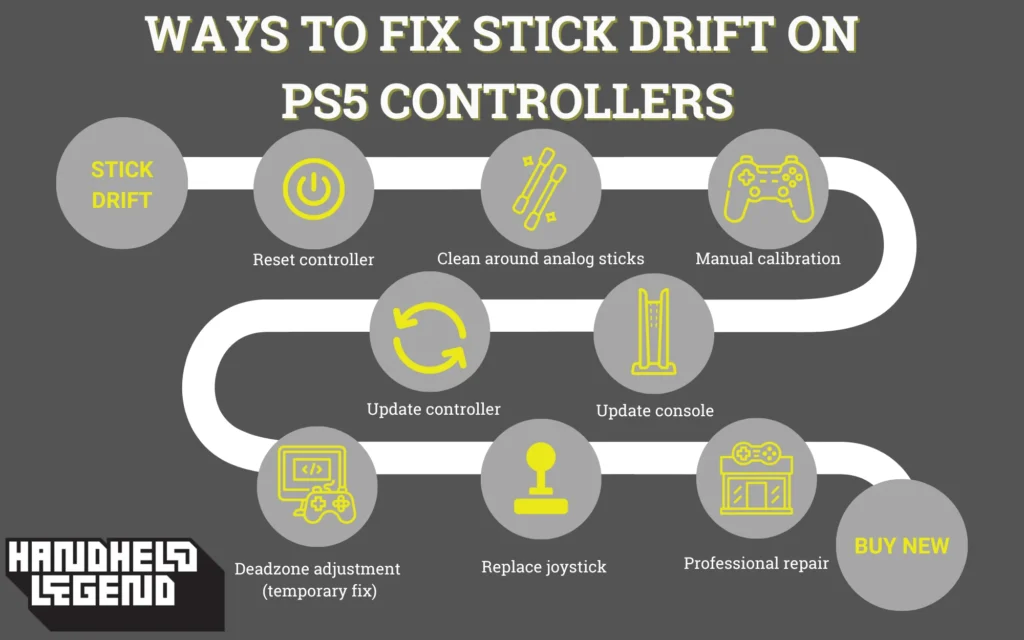
This guide is built around a clear structure: Intro → Problem → Process → Proof, so you always know what you’re doing, why you’re doing it, and how to confirm it worked.
Problem: Why stick drift happens on PS5 controllers
Stick drift usually comes from one (or a mix) of these root causes:
Environmental causes: dust, debris, skin oils
Over time, tiny particles and grime build up around the base of the analog stick. That gunk can interfere with how the stick returns to center. Even a thin ring of dirt can cause “false input signals,” especially if your game uses a small deadzone.
Common clues:
- Drift started gradually.
- The stick feels gritty, sticky, or inconsistent.
- Drift improves briefly after cleaning.
Software causes: deadzones, sensitivity, firmware quirks
Sometimes the controller is fine, but the game is strict. If a game’s deadzone is tiny, small natural stick jitter becomes visible movement. Also, pairing glitches and outdated firmware can make input behavior feel unstable.
Common clues:
- Drift happens in one game, not others.
- Drift changes after updates or after reconnecting.
- The drift looks more like “twitching” than a constant pull.
Hardware causes: joystick module wear and track scratches
This is the tough one. Inside the joystick module are sensors (often potentiometers) that measure position. With heavy use, those parts wear. Once worn, cleaning may help only briefly—if at all.
Common clues:
- Drift is strong and constant.
- Drift returns quickly (same day) after cleaning.
- Stick center looks “off” on testing tools every time.
Bottom line: Start with safe fixes first. If it’s dirt or software, you may solve it quickly. If it’s wear, you’ll at least confirm it early and avoid wasted effort.
Process Overview: The “least risky → most advanced” fix path
Here’s the smart order that prevents damage and saves time:
- Confirm it’s true drift (not a game setting)
- Update console + controller firmware
- Reset the controller properly
- Clean around the stick base (no opening)
- Use compressed air for debris
- Re-seat the stick with rotation + L3/R3 clicks
- Measure/calibrate with software tools (and understand the limits)
- Decide: keep DIY or move to repair
- If advanced: open controller only if you’re ready
- Replace parts if necessary (skill check)
- Prevent drift from returning
Now let’s do it step-by-step.
Also Read This: How to Change Video Aspect Ratio in Premiere Pro (Step-by-Step Guide for 2026)
Step 1: Confirm it’s true drift (not a game setting)
Before you touch anything, run two quick checks:
Check A: Try a second game
- If drift happens everywhere, it’s likely controller-level.
- If drift happens only in one title, the deadzone may be too small.
Check B: Look for deadzone settings
Many shooters and sports games allow deadzone adjustment. If your deadzone is set extremely low, raise it slightly and test again. This doesn’t “fix the controller,” but it can stop tiny jitters from turning into on-screen movement.
Why this matters: You don’t want to do a hardware fix for a software problem. Start simple.
Step 2: Update console + controller firmware
Updates are boring—until they save your controller.
- Update your PS5 system software.
- Update the controller firmware through the console settings.
If you also use your controller on PC, Sony provides official tools for controller updates via its accessories software.
Why this helps: Firmware updates can improve stability and address input or connection behavior that may feel like drift.
PC option: Firmware updates via official tools
If your controller is used on a Windows PC, Sony’s official accessories app supports firmware updates and customization for compatible controllers.
Tip: Close other controller-handling apps while you update (for example, avoid conflicts where possible). Keep it simple and direct.
Step 3: Hard reset the controller correctly
A proper reset clears some weird behavior and forces a clean re-connection.
How to reset:
- Turn off your PS5 console.
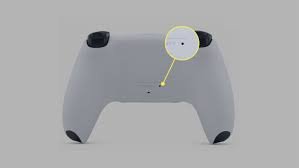
- Find the small reset hole on the back of the controller.
- Use a pin/paperclip and press and hold the button for at least 5 seconds.
- Reconnect the controller using a USB cable and press the PS button to pair again.
Important reality check: A reset can fix pairing and software oddities. It will not magically repair worn stick sensors. Still, it’s a must-do step because it’s safe and quick.
Step 4: Clean the analog stick base without opening anything
This is the best “first real fix” because it targets the most common cause: grime around the stick base.
Tool kit list: what you need and why
- Isopropyl alcohol (91%+ preferred): evaporates cleanly and helps dissolve oils
- Cotton swabs: controlled cleaning
- Compressed air (optional): blows out debris without scraping
- Good lighting: helps you see buildup
Cleaning method: rotate, click, dry, retest
- Power off the controller (and ideally the console).
- Gently tilt the analog stick to expose the rim around the base.
- Lightly dampen a cotton swab with isopropyl alcohol (not dripping).
- Clean the full circle around the stick base—slowly and gently.
- Rotate the stick in full circles 10–15 times.
- Press the stick (L3/R3) a few times to help move any loosened debris.
- Let the controller dry completely (alcohol evaporates, but give it time).
- Test again in a game and, if you can, in a controller test tool.
Why this works: Dirt causes “sticky” return-to-center behavior. Cleaning removes friction and contamination.
Step 5: Compressed air “dust purge” method
If you have compressed air, use it as a quick add-on to cleaning:
- Short, controlled bursts around the stick base.
- Rotate the stick and repeat.
- Don’t hold the can too close or spray too long in one spot.
Why this helps: Dust can hide under the rim. Air dislodges it without poking or scraping.
Step 6: Re-seat the stick with rotation + L3/R3 clicks
This is the simple “manual re-seat” routine:
- Rotate the stick fully clockwise 10 times.
- Rotate fully counterclockwise 10 times.
- Press L3/R3 (depending on the stick) and hold for 2–3 seconds.
- Repeat once.
Why it helps: It can redistribute light contamination and encourage the stick to return to center more consistently. It’s not a cure for wear, but it’s a solid low-risk step.
Step 7: Calibrate and measure drift using software tools
If drift is still there, you need data—not guesses.
Online diagnostics: drift checks and stick visualization
Tools like DriftGuard can visualize stick behavior, show center offset, and help you understand whether the stick is truly off-center.
There are also calibration utilities like DualShock Calibration GUI that are often used after replacing joysticks, not as a magic cure.
Important truth: calibration can’t fix worn parts
Some tools are very clear about this: drift is often mechanical wear, and calibration is mainly for aligning behavior after hardware changes.
How to interpret your results:
- Tiny jitter that improves after cleaning: likely debris or sensitivity.
- Consistent pull that never improves: likely wear.
- Center offset that returns quickly after fixes: likely hardware degradation.
Step 8: When to stop DIY and choose repair
Here’s when it’s smart to stop trying home tricks:
- Drift returns within hours or the next day after cleaning.
- Drift is strong enough to affect menus constantly.
- The stick feels loose or “crunchy.”
- Testing tools show a big center offset every time.
At this point, you’re likely dealing with worn joystick modules.
Official repair vs. local repair shop
- Official routes are safer if you want minimal risk and consistent results.
- Local repair shops may be faster and cheaper, depending on your area.
Sony’s support pages also provide official troubleshooting steps (including reset instructions). That’s a good “safe baseline” reference.
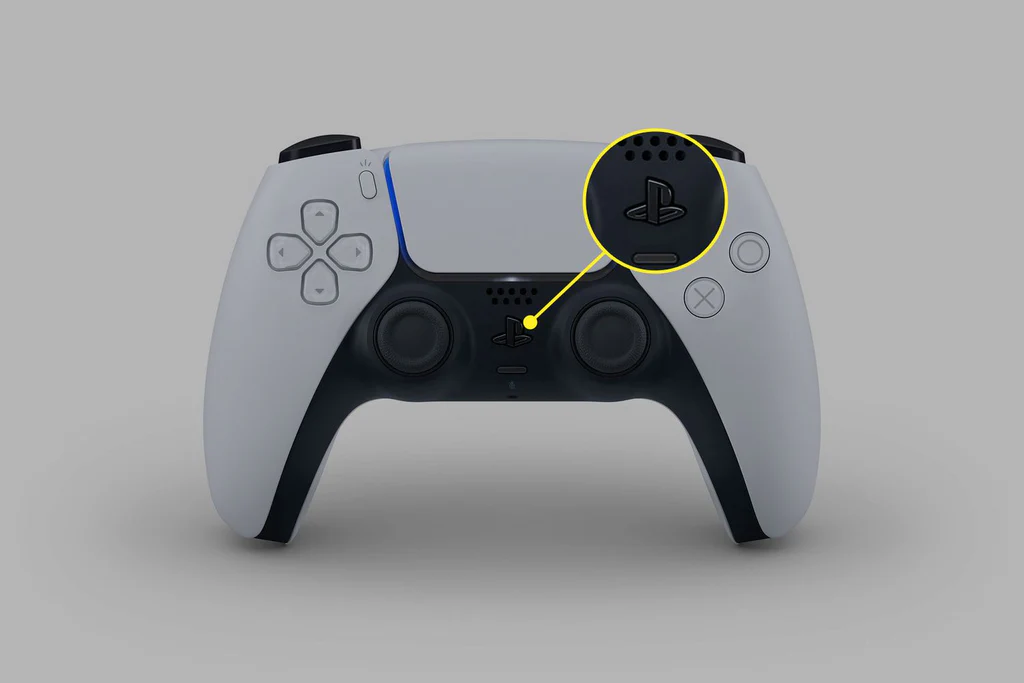
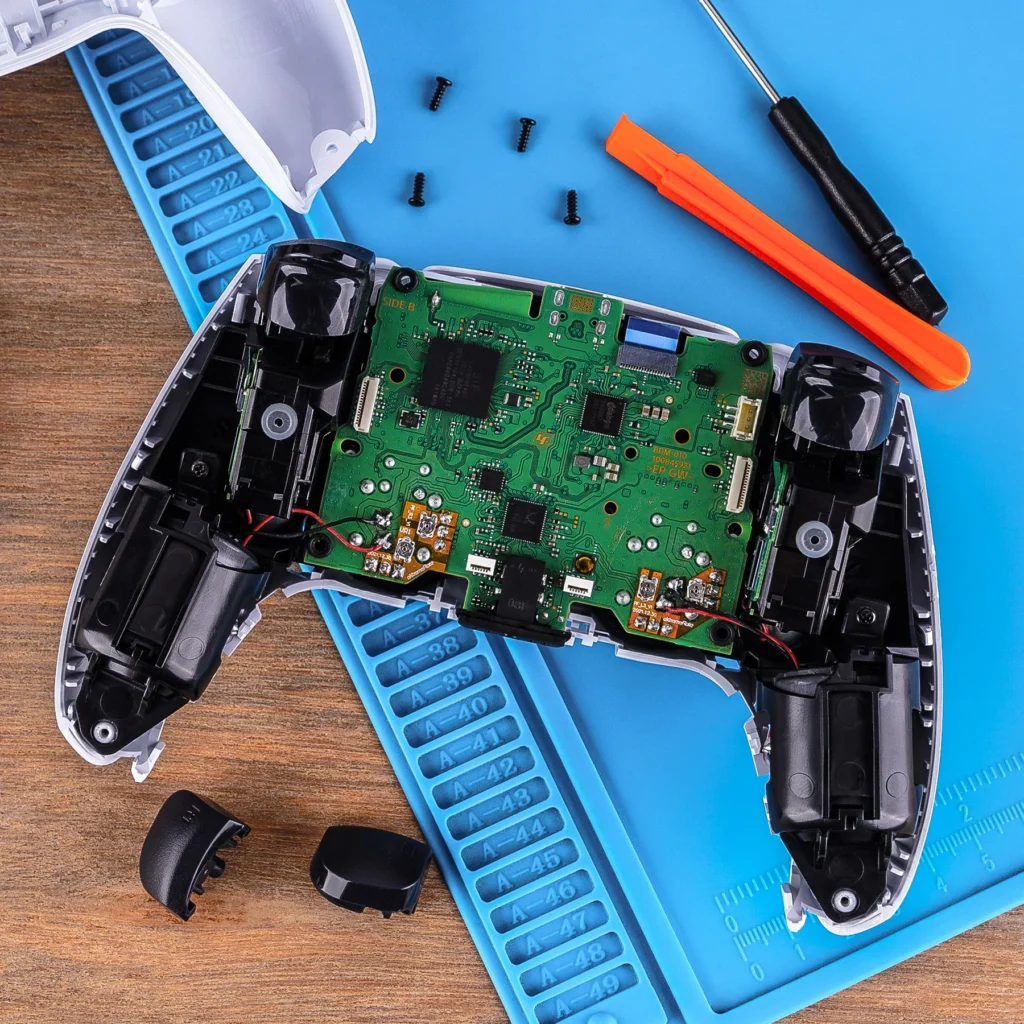
Step 9: Advanced DIY (opening the controller) — what it involves
Opening a controller is where risk begins:
- You can damage clips, ribbons, or small connectors.
- You may void warranties (depending on region and policy).
- A rushed teardown often makes things worse.
If you go advanced, use reputable, step-by-step guides. iFixit has detailed guides specifically aimed at stick drift fixes and joystick work.
Practical advice: If you don’t feel calm doing careful electronics work, stop here and choose repair service. There’s no shame in that. The goal is to get back to playing.
Step 10: Part replacement options and skill level
If drift is persistent and confirmed as hardware wear, replacement is the real fix.
- Joystick module replacement is possible, but it often requires intermediate soldering skills.
- For some people, this is a fun project.
- For many others, it’s cheaper (and safer) to pay a pro.
What to expect:
- A successful replacement should remove the consistent pull.
- Calibration tools may be used after replacement to ensure proper centering.
Hall-effect upgrades (concept + expectation)
You may hear about hall-effect joystick upgrades that reduce mechanical wear. These can be appealing, but they still require the skill (and parts) to install correctly. Treat them as an “advanced hobby path,” not a quick fix.
Step 11: Prevention: keep drift from coming back
You can’t prevent all wear, but you can slow down drift and reduce grime issues:
- Wash hands before long sessions (less oil and dust transfer).
- Store the controller away from dusty areas.
- Avoid eating greasy snacks while playing.
- Give the stick base a gentle dry wipe weekly.
- Do a light alcohol swab cleaning monthly (if you play often).
- Don’t press the sticks harder than needed—gentle inputs reduce stress.
Proof: How to know your fix worked (repeatable tests)
A real fix isn’t “it feels better for 10 minutes.” Here’s proof you can trust:
Proof Test 1: Gameplay idle test
- Load a game with a stable camera or crosshair.
- Put the controller down for 30 seconds.
- If the camera doesn’t creep, that’s a strong sign of improvement.
Proof Test 2: Tool-based center check
- Use a stick visualization tool to observe resting position.
- A stable near-center rest is what you want.
- Wild jitter or consistent offset suggests hardware wear.
Proof Test 3: The 24-hour return test
The most honest test:
- If drift stays gone after a full day of normal play, your fix likely worked.
- If it returns quickly, that usually points to wear (not dirt).
FAQs Quick answers to common drift questions
1) Can I fix drift without opening the controller?
Yes. Cleaning around the analog base with isopropyl alcohol, using compressed air, updating firmware, and doing a proper reset often solves mild drift.
2) Is it safe to use isopropyl alcohol on a controller?
Used lightly with a cotton swab and allowed to dry completely, it’s commonly used for electronics cleaning. Avoid soaking or spraying directly.
3) What if drift keeps coming back after I clean it?
That’s a strong sign of joystick module wear. At that point, repair or part replacement becomes the reliable solution.
4) Will calibration tools permanently fix stick drift?
Calibration can help measure the problem and may help after hardware work, but many tools note that worn mechanical parts must be replaced to truly fix drift.
5) Why does drift sometimes happen on newer controllers?
It can happen due to early wear, small deadzones, factory tolerances, or dust intrusion. Not every case is “old controller wear.”
6) When should I contact official support instead of DIY?
If your controller is under warranty, drift is severe, or you’re uncomfortable opening hardware, official support steps and service routes are safer.
7) Does resetting the controller erase everything?
Resetting is mainly a troubleshooting step for connection and controller behavior. Sony’s guidance focuses on safely resetting and reconnecting.
Conclusion: The smart plan that saves time and money
If you take one thing from this guide, let it be this: drift is easiest to handle when you go in order—settings, updates, reset, cleaning, testing, then repair decisions. That sequence prevents accidental damage, avoids wasted effort, and gets you back to smooth gameplay faster.
Start with the non-invasive steps. If they work, you just saved money and stress. If they don’t, you’ll have strong proof that wear is the real problem—and you can choose repair or replacement with confidence.

Edusolvia Editorial Team creates well-researched, practical, and easy-to-follow educational content. Our articles are written and reviewed by experienced educators and digital specialists to ensure accuracy, clarity, and real-world usefulness. We focus on trustworthy information that helps learners make informed decisions with confidence.