
Last updated on February 16th, 2026 at 04:10 pm
If your Amazon Fire tablet doesn’t have the Google Play Store, you’re not alone. Fire tablets use Amazon’s app ecosystem by default, so adding Google Play usually means sideloading (installing apps from outside the Amazon Appstore). The good news: you typically don’t need a computer, you don’t need “root,” and you don’t need anything risky like hacking the system—just the right files and the right order.
How to Download Google Play Store on an Amazon Fire Tablet
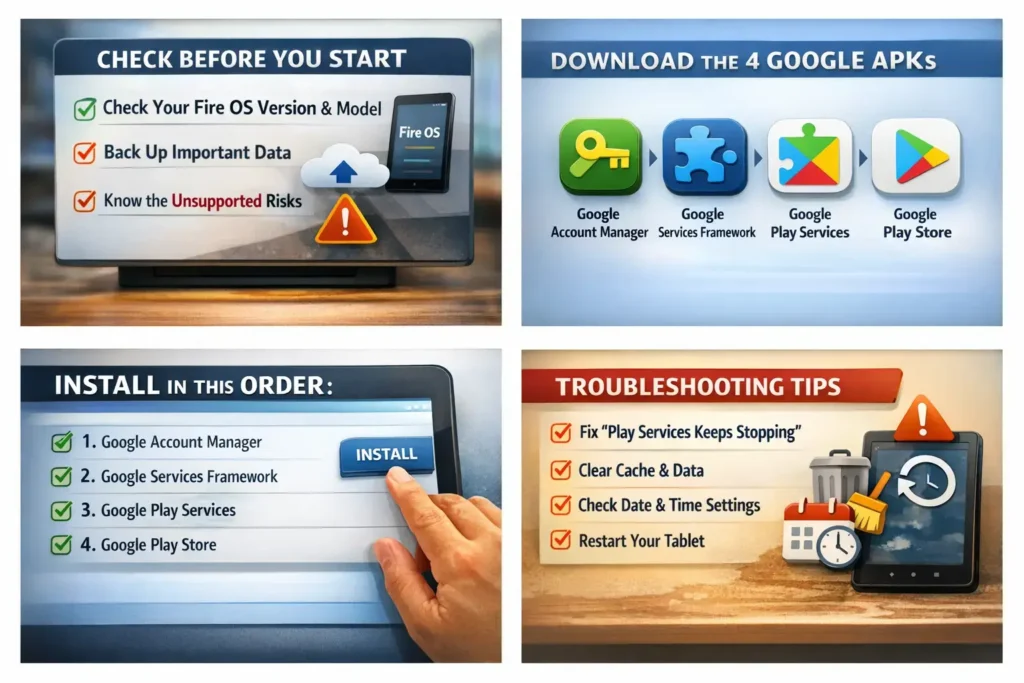
- Check Fire OS version: Settings → Device Options → About Fire Tablet.
- Enable Unknown Apps: Settings → Security & Privacy → Install unknown apps → turn ON for Silk Browser.
- Download 4 Google APKs (from a trusted source like APKMirror):
- Google Account Manager
- Google Services Framework
- Google Play Services (match your Fire OS + device)
- Google Play Store
- Install in this exact order: Account Manager → Services Framework → Play Services → Play Store.
- Restart the tablet.
- Open Play Store, sign in, then wait a few minutes for updates.
Before you touch anything, do these quick checks:
Know your Fire OS version and tablet model
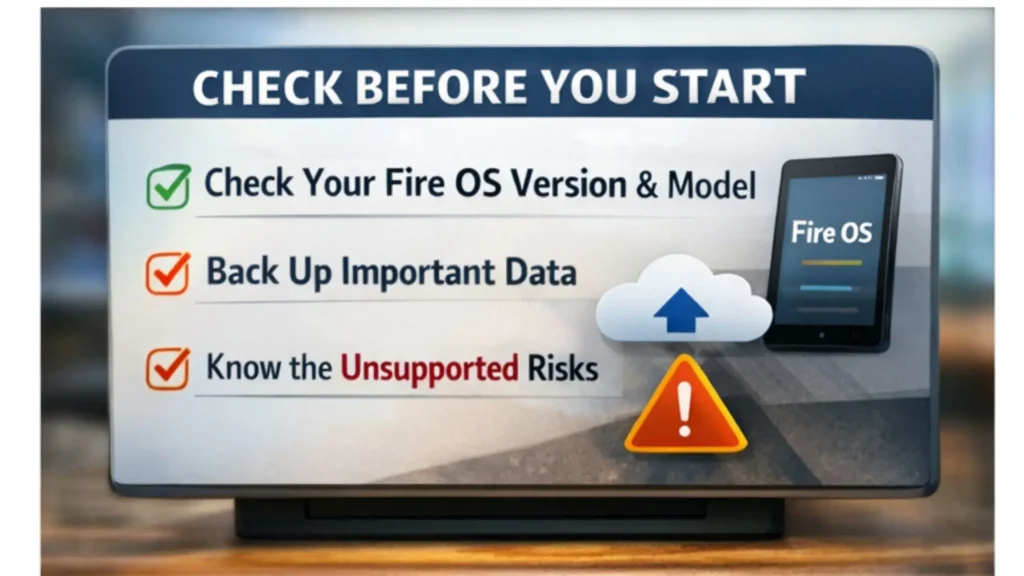
Different Fire tablets run different Fire OS versions (and Fire OS maps to different Android bases). That matters because Google Play Services must match your device. Many recent guides recommend confirming your model and Fire OS version first so you download the correct APK variants.
Back up your important stuff
This process is usually smooth, but it’s still smart to back up photos, downloads, and anything you can’t replace.
Understand the “unsupported” reality
Google doesn’t officially ship the Play Store for Fire tablets, and Amazon doesn’t officially design Fire OS around it—yet it often works well when installed correctly. (Yahoo! Tech)
Step 1: Turn on installation from unknown sources
To install Google components, you must allow your Fire tablet to install apps that don’t come from the Amazon Appstore.
- Open Settings
- Go to Security & Privacy (or Security)
- Find Install unknown apps (or Apps from Unknown Sources)
- Turn it On for the app you’ll use to download/install (usually Silk Browser and sometimes Files/Downloader) (amazonforum.com)
Fire OS menus that may look different
Some Fire OS versions show a simple “Apps from Unknown Sources” toggle, while others use “Install unknown apps” per app. If your menu labels don’t match exactly, that’s normal—look for the “unknown apps/sources” wording in Security & Privacy.
Step 2: Download the 4 required Google APK files
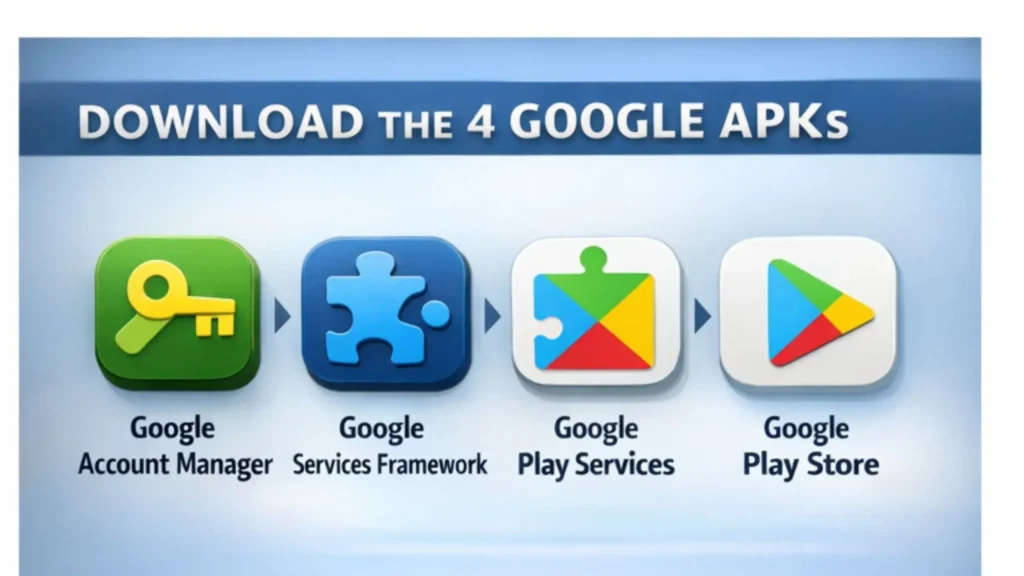
Most proven methods install four APKs:
- Google Account Manager
- Google Services Framework
- Google Play Services
- Google Play Store
This “four APK” approach is the standard path recommended across major step-by-step guides. (Android Police)
What each APK does (in plain words)
- Account Manager: helps your device handle Google logins
- Services Framework: core Google background plumbing
- Play Services: the big engine many apps rely on (maps, login, notifications, etc.)
- Play Store: the app storefront itself
Where to download safely (and what to avoid)
Well-known guides often point to reputable APK repositories like APKMirror, and they warn against random “one-click Play Store installer” sites filled with pop-ups. (Yahoo! Tech)
Practical safety rule: If the download page is pushing “cleaner apps,” “VPN alerts,” or sketchy installers, back out.
Here are safe starting points many guides reference (external links):
Step 3: Install the APKs in the correct order
Once all four APK files are downloaded, install them in this exact order:
- Google Account Manager
- Google Services Framework
- Google Play Services
- Google Play Store
How to install each one
- Tap the download notification, or open Files → Downloads
- Tap the APK
- Choose Install
- Repeat for the next file
Restart at the right moment
After installing all four, restart the tablet. Many guides recommend a reboot to help services initialize cleanly.
Step 4: Sign in to Google Play Store
After reboot:
- Open Play Store
- Sign in with your Google account
- Wait a minute—first launch can be slow while background services wake up
Tip: If sign-in hangs, jump to the troubleshooting section (it’s usually a Play Services mismatch or cached data issue).
Step 5: Update Google Play Services and the Play Store
Once you can open the Play Store, give it a few minutes and then:
- Open Play Store → your profile icon → Settings
- Let it update in the background (some updates happen quietly)
This matters because the first APK versions you install may not be the newest, and updates improve stability.
Step 6: Fix common problems fast (Troubleshooting)
This is where most people either win quickly… or get stuck for hours. Let’s keep it simple.
Problem A: “Google Play Services keeps stopping”
This usually means your Google Play Services APK variant doesn’t match your Fire OS / device architecture.
Try this order:
- Restart once more (seriously—it helps)
- Go to Settings → Apps & Notifications (or Applications) → Manage All Applications
- Find Google Play Services
- Tap Storage → Clear cache and Clear data
- Do the same for Google Play Store
- Restart again
If it still crashes:
- Uninstall the four Google APKs (reverse order can help), then reinstall using the correct versions for your model/Fire OS. This is exactly why reputable guides stress confirming your device details first.
Problem B: Play Store won’t open / endless loading
Try these quick fixes:
- Confirm Date & Time are correct (automatic time is best)
- Clear cache/data for Play Store and Play Services
- Make sure you have at least 1–2 GB free storage
- Reboot
Many “stuck loading” issues are just cache + time + storage.
Problem C: “Device not compatible” on some apps
Some apps require newer Android versions or specific hardware features. Fire tablets can be limited depending on model/year. In that case:
- Try a “lite” version of the app
- Or use Amazon Appstore alternatives for that specific app (Android Police)
Problem D: Google sign-in fails
- Clear cache/data for Google Services Framework
- Restart
- Try sign-in again
If you use a Kids profile, you may need to install and sign in from the adult profile first.
Step 7: Optional easier method with Fire Toolbox (PC)
If the manual APK process feels fiddly, many users use Fire Toolbox (requires a Windows or Linux computer and a USB cable). It can automate installing the Play Store and other tweaks.
Why people like it
- Fewer manual steps
- Can handle multiple tweaks in one place (Play Store, debloating, etc.)
Security tips for long-term safety
- Only download APKs from well-known, reputable sources (avoid “installer” apps and pop-up heavy sites). (TechRadar)
- After setup, consider turning off unknown-source installs for apps you don’t use to sideload.
- Keep Play Services updated—many apps depend on it to stay stable.
FAQs
1) Is it legal to install Google Play on a Fire tablet?
In most places, installing APKs you downloaded yourself for personal use is generally allowed, but it’s not officially supported by Google or Amazon. (Yahoo! Tech)
2) Will this “root” my tablet or void my warranty?
The common method described in major guides doesn’t require root. Warranty rules vary, but this approach is usually described as standard sideloading rather than device modification
3) Why do I need four APKs? Why not just the Play Store APK?
Because the Play Store relies on Google background services (Framework + Play Services + Account components). Without them, it usually won’t run.
4) What’s the safest place to get the APKs?
Many step-by-step guides point to reputable repositories such as APKMirror and warn against random “bundle installers.
5) Can I remove Google Play later if I change my mind?
Yes. You can uninstall the Google apps from Settings → Apps. If issues persist, removing and reinstalling with correct versions is a common fix path.
6) Why is Play Store slow right after installing?
Right after installation, background services may be updating and syncing. A reboot plus a few minutes of idle time often helps.
Conclusion
You can absolutely get the Play Store working by enabling unknown app installs, downloading the four required APKs, installing them in the correct order, rebooting, and then letting updates settle. If you want the simplest path, the PC-based Fire Toolbox method can reduce manual steps.If you tell me your Fire tablet model and Fire OS version (both are in Settings), I can point you to the exact kind of Play Services variant you should choose—this is the most common reason installs fail.

Edusolvia Editorial Team creates well-researched, practical, and easy-to-follow educational content. Our articles are written and reviewed by experienced educators and digital specialists to ensure accuracy, clarity, and real-world usefulness. We focus on trustworthy information that helps learners make informed decisions with confidence.