
Microsoft Store is the go-to hub for downloading apps, games, and software updates on Windows devices. But sometimes, users face frustrating issues where apps won’t download or install. These errors can occur for various reasons, from corrupted cache files to outdated system settings. In this guide, we’ll walk you through proven methods to fix Microsoft Store download or install errors efficiently, step by step.
By the end of this article, you’ll know exactly how to get your Microsoft Store working properly again, without needing advanced technical knowledge.
Why Microsoft Store Download Errors Happen
Before diving into the fixes, it’s important to understand why these errors occur. Common causes include:
- Corrupted cache files – Temporary data that stores app information can sometimes cause conflicts.
- Outdated Windows updates – Running an older version of Windows can prevent apps from installing correctly.
- Incorrect date and time settings – Microsoft Store relies on accurate system time.
- Network or connectivity issues – Unstable internet connections can interrupt downloads.
- Corrupted Microsoft Store installation – If the app itself is corrupted, it may fail to run.
Understanding the root cause helps in choosing the right solution.
Step-by-Step Solutions to Fix Microsoft Store Download Errors
Here’s a complete guide to resolving download and install issues in the Microsoft Store. Follow these steps carefully:
1. Reset Microsoft Store App
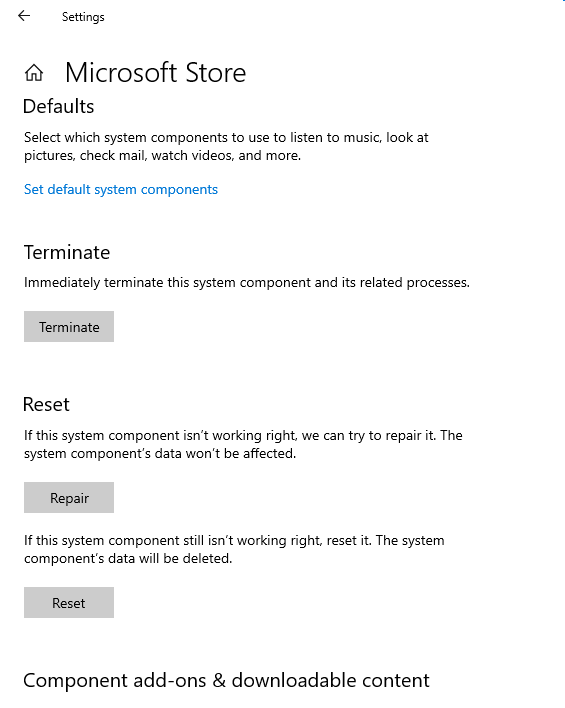
Resetting the Microsoft Store clears its cache and restores default settings without affecting your installed apps.
Steps:
- Press Windows + S to open the search bar.
- Type Microsoft Store, right-click on the app, and select App Settings.
- Scroll down and click Terminate. This stops the app completely.
- Press Repair, then Reset. Confirm the reset when prompted.
- Close the settings window.
Resetting often resolves most download errors caused by corrupted app data.
2. Clear Microsoft Store Cache Using WSReset
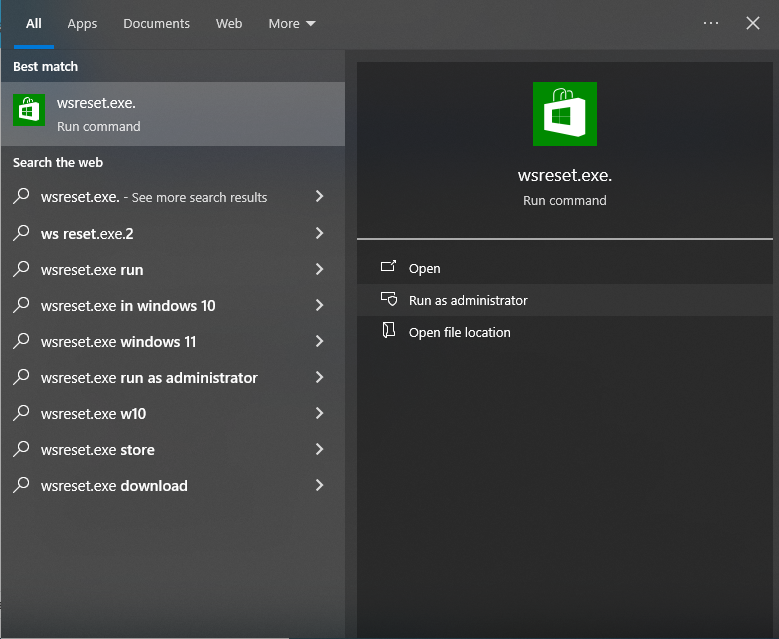
WSReset is a built-in Windows tool designed to fix Microsoft Store issues by clearing its cache.
Steps:
- Open the search bar again and type wsreset.exe.
- Right-click the result and select Run as Administrator.
- A command prompt window will open. Wait for it to automatically reset the store.
- Once completed, the Microsoft Store will reopen.
This method is particularly effective when apps fail to download or the store refuses to launch.
3. Check Your Internet Connection
A stable internet connection is crucial for downloads. Slow or interrupted connections can lead to errors.
Tips:
- Restart your router or modem.
- Switch from Wi-Fi to a wired connection if possible.
- Disable VPNs or proxies temporarily as they may block Microsoft Store traffic.
4. Verify Windows Updates
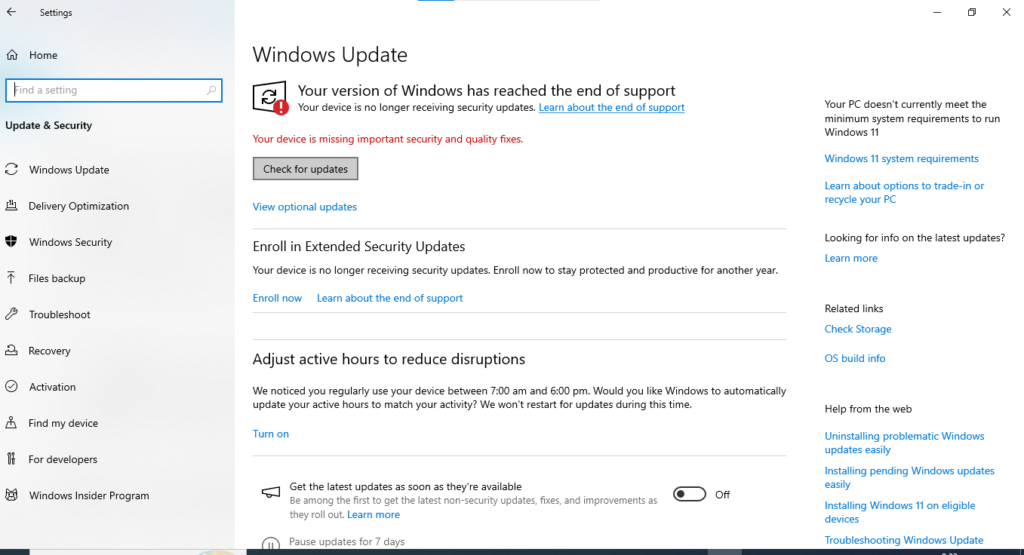
Running the latest version of Windows ensures compatibility with Microsoft Store apps.
Steps:
- Press Windows + I to open Settings.
- Navigate to Update & Security → Windows Update.
- Click Check for Updates and install any available updates.
- Restart your PC after updates are installed.
Keeping Windows updated reduces compatibility issues and enhances security.
5. Check Date and Time Settings
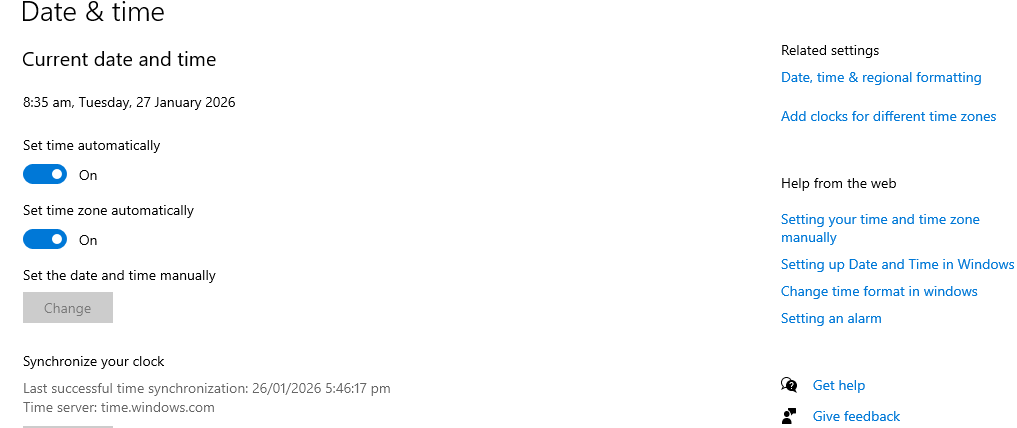
Incorrect system time can cause Microsoft Store authentication issues.
Steps:
- Press Windows + I to open Settings.
- Go to Time & Language → Date & Time.
- Enable Set time automatically and Set time zone automatically.
- Restart Microsoft Store.
6. Reinstall Microsoft Store (Advanced)
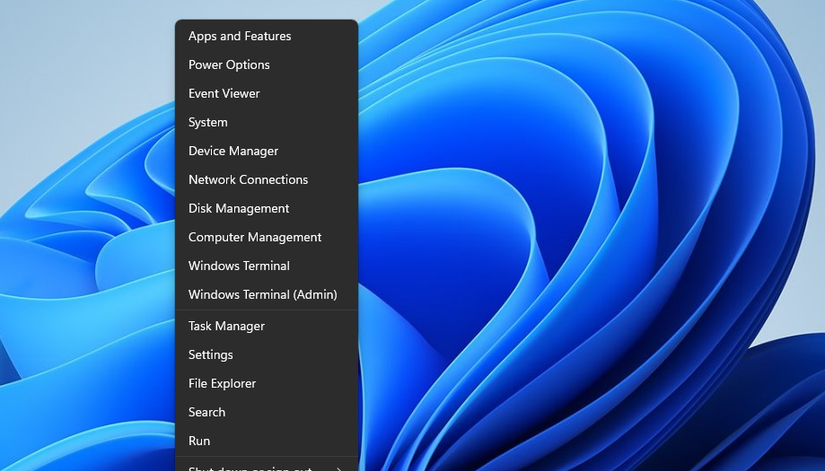
If the above steps fail, reinstalling Microsoft Store can resolve deep-rooted issues.
Steps:
- Press Windows + X and select Windows Terminal (Admin).
- Type the following command and press Enter:
Get-AppxPackage *WindowsStore* | Remove-AppxPackage - Reinstall Microsoft Store using:
Get-AppxPackage -allusers Microsoft.WindowsStore | Foreach {Add-AppxPackage -DisableDevelopmentMode -Register "$($_.InstallLocation)\AppXManifest.xml"} - Restart your PC and check the store.
⚠️ Note: This step is recommended only if other solutions don’t work.
Common Microsoft Store Errors and How to Recognize Them
Here’s a quick table of common errors users face and their usual causes:
| Error Message | Possible Cause | Quick Fix |
|---|---|---|
| 0x80070005 | Permission issues | Reset Microsoft Store |
| 0x80073CF9 | Corrupted cache | Run WSReset |
| 0x80131500 | Network connectivity | Check internet or VPN |
| 0x8024001E | Outdated Windows updates | Install latest updates |
| App won’t download or install | Store corruption, cache issue | Reset & repair store |
Tips to Prevent Future Microsoft Store Issues
- Regularly clear Microsoft Store cache using WSReset.
- Keep Windows updated to avoid compatibility errors.
- Avoid using third-party firewall or VPN apps that block Microsoft Store traffic.
- Periodically restart your PC to maintain system stability.
Frequently Asked Questions (FAQs)
Q1: How do I reset Microsoft Store without losing apps?
A: Resetting Microsoft Store only affects the app itself. Your installed apps remain safe. You can do this through Settings → Apps → Microsoft Store → Reset.
Q2: Why does my Microsoft Store say “Check your connection”?
A: This usually happens due to unstable internet or proxy/VPN settings. Switching to a stable network or disabling VPNs often fixes it.
Q3: Can WSReset delete my apps?
A: No, WSReset only clears the Microsoft Store cache. Installed apps are unaffected.
Q4: My Microsoft Store still won’t download apps after reset. What next?
A: Reinstalling Microsoft Store using Windows PowerShell commands can resolve deep-rooted issues. Ensure you run it as an administrator.
Q5: Is it necessary to keep Windows updated for Microsoft Store?
A: Yes. Many apps require the latest Windows features. Updating ensures compatibility and security.
Conclusion
Microsoft Store download or install errors can be frustrating, but most issues are solvable with simple fixes like resetting the app, clearing the cache, or checking updates. By following this guide, you can resolve problems in 2026 efficiently and prevent them from happening in the future.
Keeping your system up to date, maintaining a stable internet connection, and using built-in troubleshooting tools will ensure smooth downloads and installations every time.

Edusolvia Editorial Team creates well-researched, practical, and easy-to-follow educational content. Our articles are written and reviewed by experienced educators and digital specialists to ensure accuracy, clarity, and real-world usefulness. We focus on trustworthy information that helps learners make informed decisions with confidence.