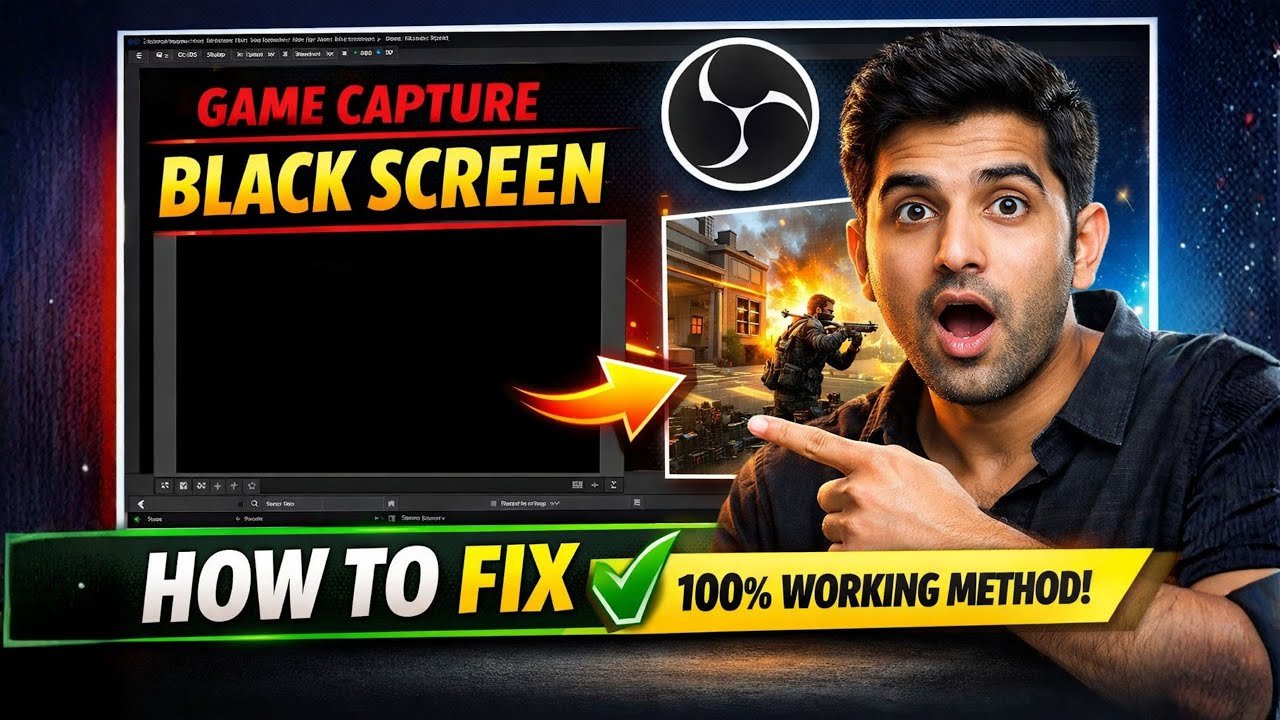
If you’re trying to record or stream gameplay using OBS Studio and all you see is a black screen, you’re not alone. The OBS black screen issue with Game Capture is one of the most common and frustrating problems faced by gamers, streamers, and content creators.
The good news?
In most cases, this issue can be fixed in just a few minutes — without reinstalling OBS or changing your PC.
This in-depth guide explains why OBS shows a black screen, how to fix it step by step, and what to do if the problem still doesn’t go away. Whether you’re a beginner or an experienced streamer, this article covers everything you need.
This guide focuses only on solving the problem, not unnecessary features or advanced tweaks.
What Is the OBS Black Screen Issue?
The OBS black screen issue happens when Game Capture fails to display your game, even though OBS is running correctly. Audio may work, the game may be open, but the preview window remains completely black.
This problem usually appears when:
- Recording PC games
- Streaming on YouTube, Twitch, or Facebook
- Using Game Capture instead of Display Capture
Why Does OBS Show a Black Screen?
Short Answer
OBS shows a black screen because it does not have proper permission or cannot correctly hook into the game window. This usually happens due to permission mismatch, incorrect capture mode, or adding Game Capture before the game is running.
Detailed Reasons OBS Game Capture Fails
Here are the most common causes:
1. OBS Is Not Running as Administrator
If your game is running with higher system permissions than OBS, Game Capture will fail.
2. Game Was Not Open Before Adding Game Capture
OBS needs the game to be running so it can detect the correct window.
3. Incorrect Capture Mode Selected
Using “Capture any fullscreen application” often causes detection problems.
4. Source Glitch or Corrupted Game Capture
Sometimes the Game Capture source itself becomes bugged and needs to be re-added.
The Most Reliable Fix: Run OBS as Administrator
This method solves the black screen issue in most cases and works on Windows 10 and Windows 11.
Step-by-Step Fix (Recommended Method)
Step 1: Open Your Game First
Before touching OBS:
- Launch the game you want to record or stream
- Make sure it is fully running (menu or gameplay screen)
This step is critical.
Step 2: Close OBS Completely
- Exit OBS Studio
- Make sure it is not running in the background (check system tray)
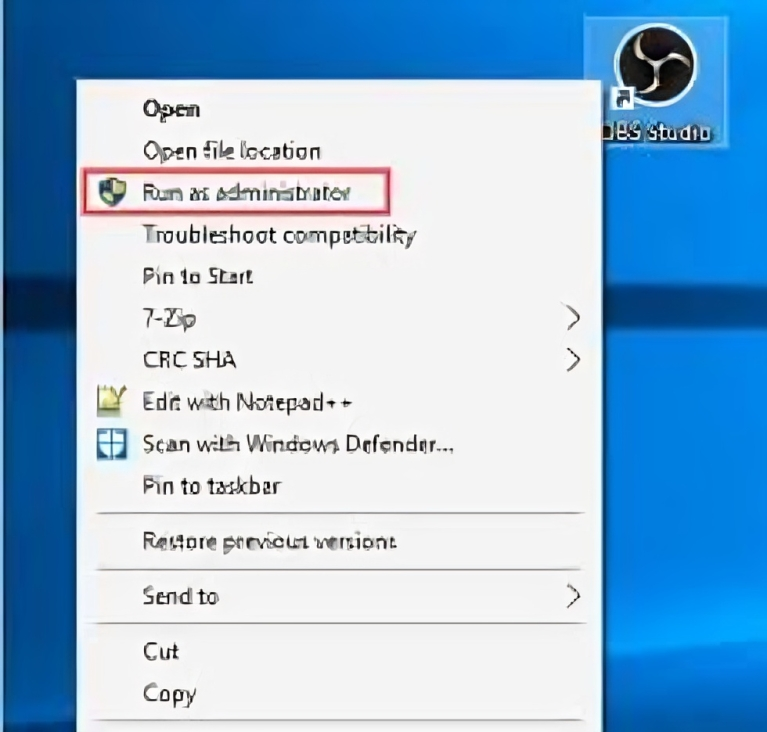
Step 3: Run OBS as Administrator
- Click the Windows search bar
- Type OBS
- Right-click OBS Studio
- Select Run as administrator
This ensures OBS and the game run at the same permission level.
Step 4: Remove the Existing Game Capture Source
Inside OBS:
- Go to Sources
- Right-click your existing Game Capture
- Click Remove
Removing the source resets incorrect settings.
Step 5: Add Game Capture Again
- Click the + (Plus) button in Sources
- Select Game Capture
- Click OK
Step 6: Choose the Correct Mode
In Game Capture settings:
- Set Mode to
Capture specific window
This is the most stable option.
Step 7: Select Your Game Window
- Click the Window dropdown
- Choose your running game
- Click OK
Step 8: Check OBS Preview
You should now see your game appear in the OBS preview window.
If it does, the problem is fixed.
Why “Capture Specific Window” Works Best
Many users select “Capture any fullscreen application” assuming it’s easier. In reality, this mode often fails due to:
- Multiple apps using fullscreen
- GPU conflicts
- Window detection errors
Capture specific window tells OBS exactly what to record, making it far more reliable.
Common Mistakes That Cause OBS Black Screen
Avoid these mistakes to prevent the issue from coming back:
- Opening OBS before launching the game
- Not running OBS as administrator
- Adding multiple Game Capture sources
- Switching games without reselecting the window
- Using Game Capture for unsupported applications
Game Capture vs Display Capture (Quick Comparison)
| Feature | Game Capture | Display Capture |
|---|---|---|
| Performance | Best | Lower |
| CPU Usage | Low | Higher |
| Black Screen Risk | Medium | Very Low |
| Best For | PC games | Desktop / Browsers |
If Game Capture continues to fail for a specific game, Display Capture can be used as a temporary alternative.
Does This Fix Work on Windows 11?
Yes.
This method works on:
- Windows 10
- Windows 11
- OBS Studio (latest versions in 2026)
The steps remain the same across versions.
Roman Urdu Tip for Beginners
Agar OBS black screen show kar raha hai, to aksar masla permission ka hota hai. OBS ko Run as Administrator karna aur game pehle open karna is issue ko zyada tar cases mein solve kar deta hai.
When This Fix May Not Work
In rare cases, the black screen can still appear if:
- The game uses unsupported anti-cheat
- You are capturing emulators incorrectly
- Laptop has dual GPU (Intel + NVIDIA)
However, for standard PC games, this guide solves the problem in the majority of situations.
Frequently Asked Questions (FAQs)
Why does OBS Game Capture show only a black screen?
OBS shows a black screen when it cannot properly hook into the game window. This usually happens due to permission mismatch, incorrect capture mode, or adding Game Capture before opening the game.
Should I open the game before OBS?
Yes. Always open the game first, then start OBS. This allows OBS to detect and capture the correct game window.
Is running OBS as administrator safe?
Yes. Running OBS as administrator is safe and recommended when using Game Capture, especially for modern PC games.
Does reinstalling OBS fix the black screen?
Usually no. The issue is related to settings and permissions, not installation files. Reinstalling is rarely necessary.
Can I use Display Capture instead?
Yes. Display Capture works in almost all cases, but it uses more system resources and may capture unwanted content.
Final Thoughts
The OBS black screen issue with Game Capture can feel extremely frustrating, especially when you’re ready to record or stream. Fortunately, the fix is simple once you understand the real cause.
Running OBS as administrator, opening your game first, and using Capture specific window solves the problem for most users — quickly and reliably.
If you follow the steps exactly as explained above, you should be able to get back to recording and streaming without any issues.

Edusolvia Editorial Team creates well-researched, practical, and easy-to-follow educational content. Our articles are written and reviewed by experienced educators and digital specialists to ensure accuracy, clarity, and real-world usefulness. We focus on trustworthy information that helps learners make informed decisions with confidence.